Adjusted calibration
Some flash files can be adjusted before you flash them. On top of the base file you select, you can change individual parameters — things like the rolling-launch RPM, failsafe thresholds or start-stop behaviour — and flash your own version.
This is an advanced feature: the values you set are written to your ECU/TCU exactly as you enter them, so only change parameters you understand. The first time you open the editor you'll be asked to accept the terms of use (the User Modification Liability Disclaimer). Not sure what a value should be? Don't guess — ask us first (see Safety & support); we're glad to advise before you flash.
Adjusted calibration is available in the GT Flasher app on Android phone or tablet, iPhone / iPad and Windows. The screens below are from Android; the steps and wording are the same on the other platforms.
1. Find a file that supports tuning
Open the flashing list on your device (see the flashing guide for Android, iPhone / iPad or Windows). The files available here come from your account for the connected car — see Your account & the portal.
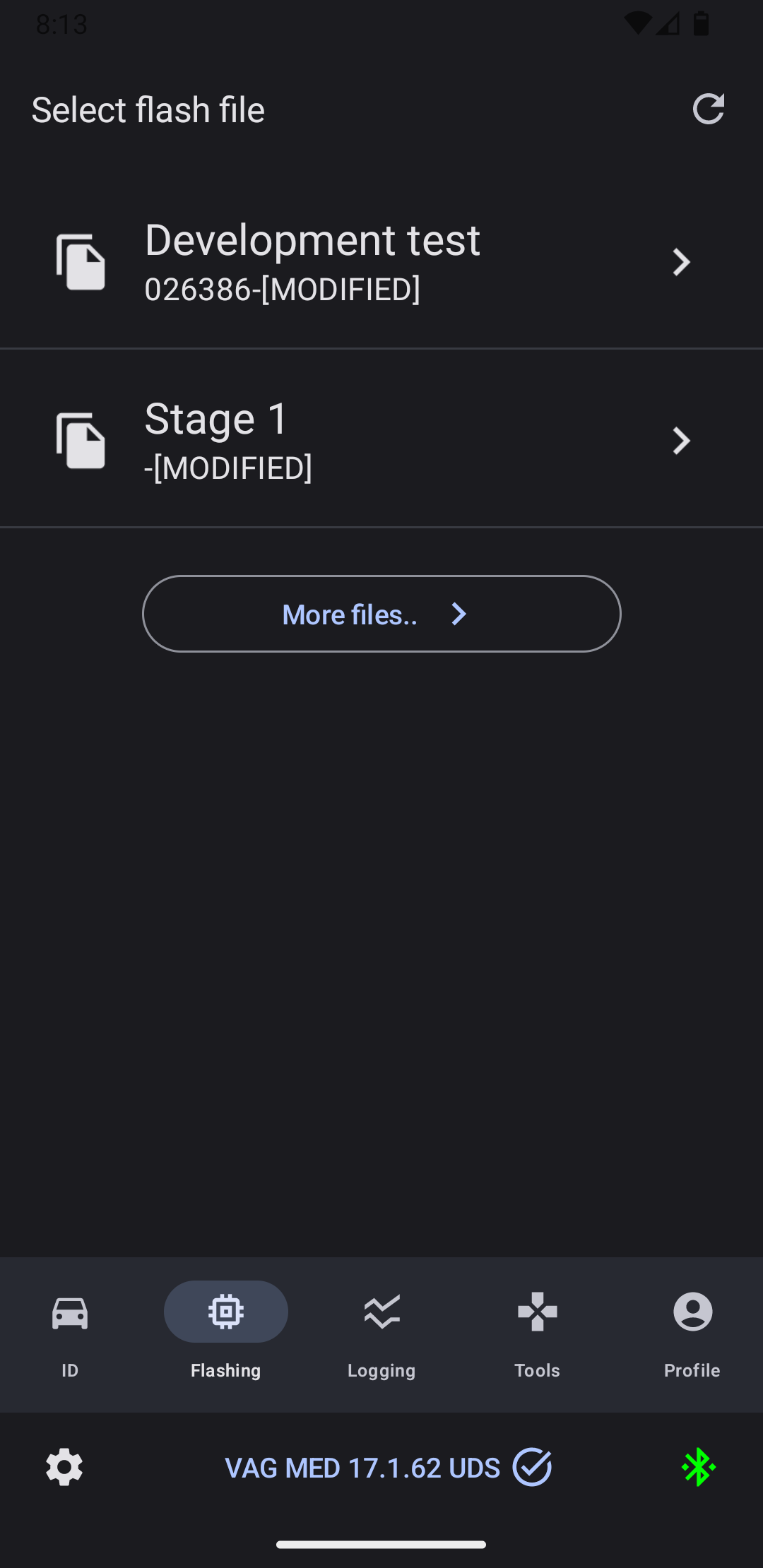
A file you can adjust is tagged [MODIFIED] in the list. Tap it to open it.
2. See what you can tune
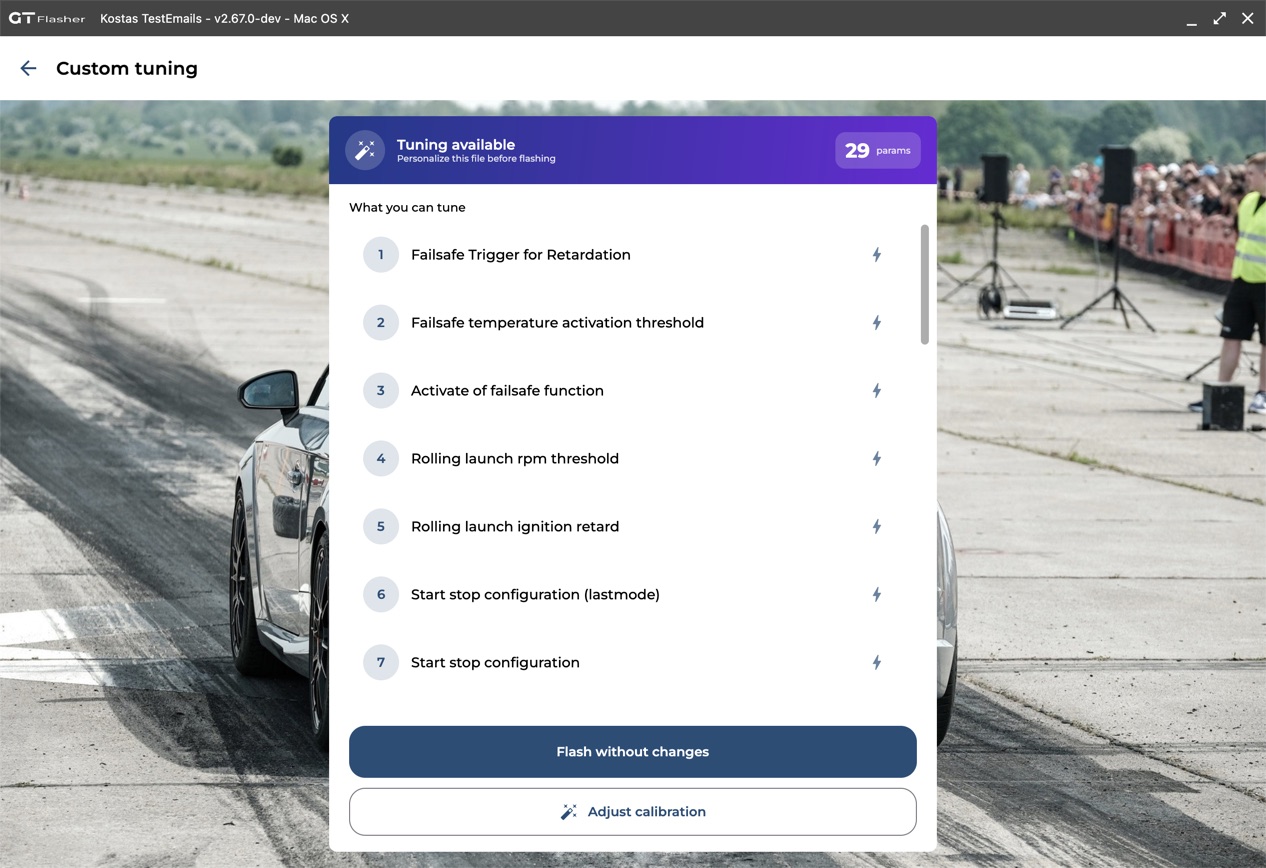
When the file opens, a Tuning available banner appears — "Personalize this file before flashing" — with the number of parameters you can change (for example 29 params) and a list of what's available. You have two choices:
- Flash without changes — flash the file exactly as it was provided.
- Adjust calibration — open the editor and change parameters.
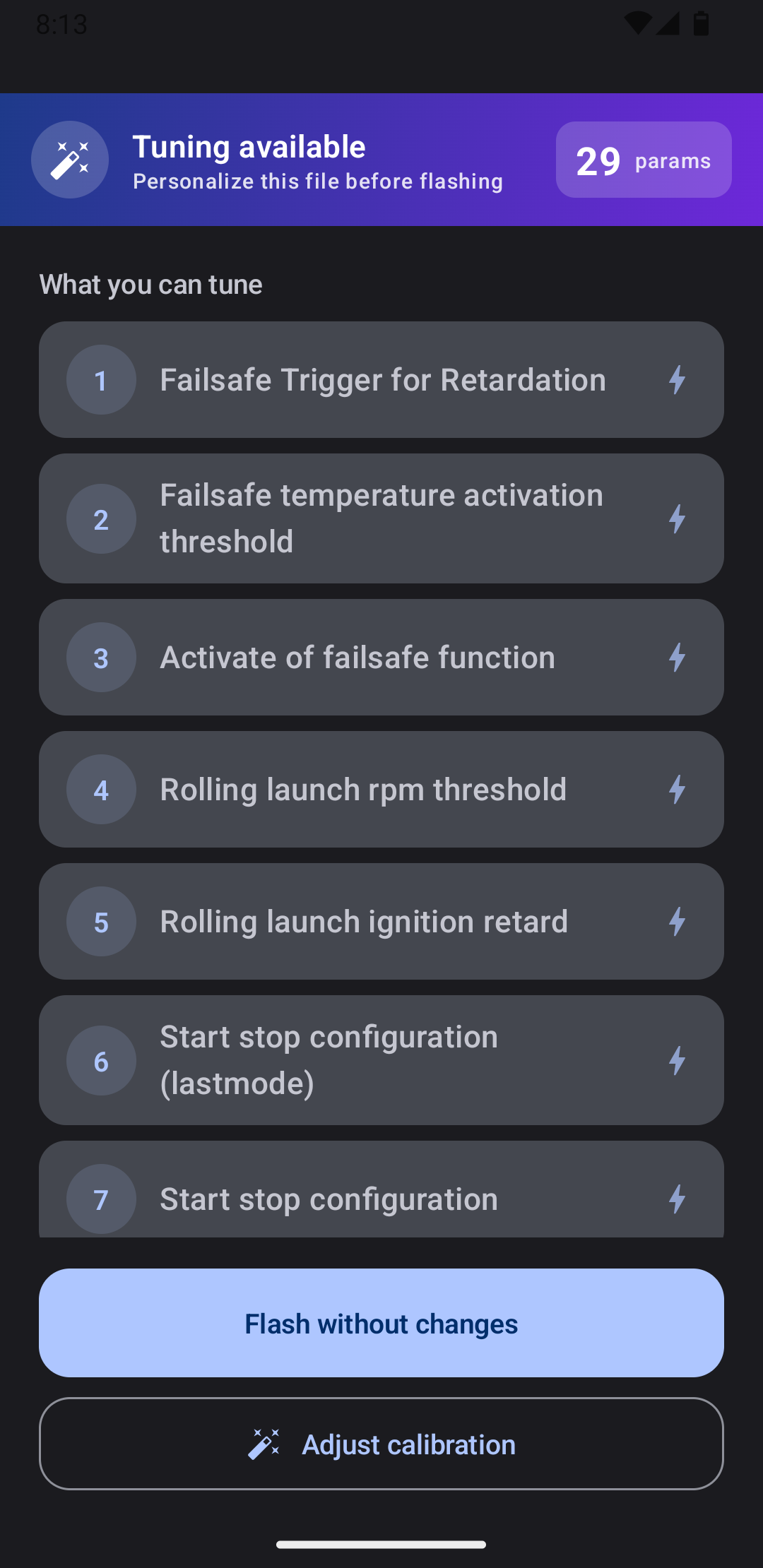
Not every file is prepared for adjustment. If yours doesn't show the Tuning available banner — or a parameter you'd like to change isn't listed — ask support to look into it for your file (include your VIN); see Safety & support.
No extra credits. Adjusting a file's calibration doesn't use any tuning credits — tweak your values and re-flash as often as you like. Credits for the underlying file work as described in Your account & the portal.
3. Accept the terms of use
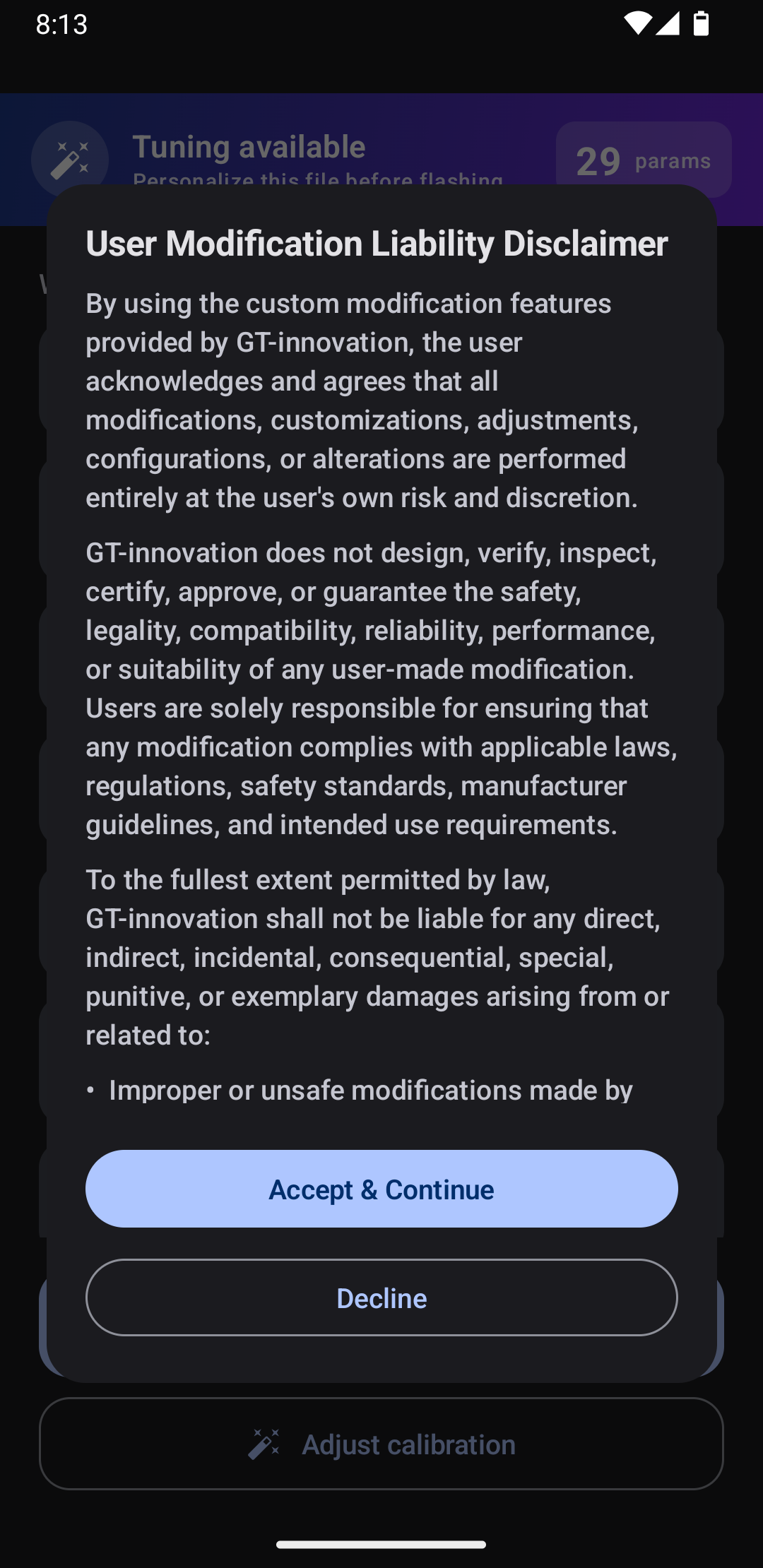
The first time you choose Adjust calibration, a User Modification Liability Disclaimer is shown. In short: any modification is performed entirely at your own risk; GT-Innovation does not verify, approve or guarantee user-made changes and is not liable for damage — you are responsible for making sure a change is safe and legal for your vehicle.
Read it, then Accept & Continue.
4. Change a parameter
The editor lists every tunable parameter with its map name underneath. Tap one to open its editor:
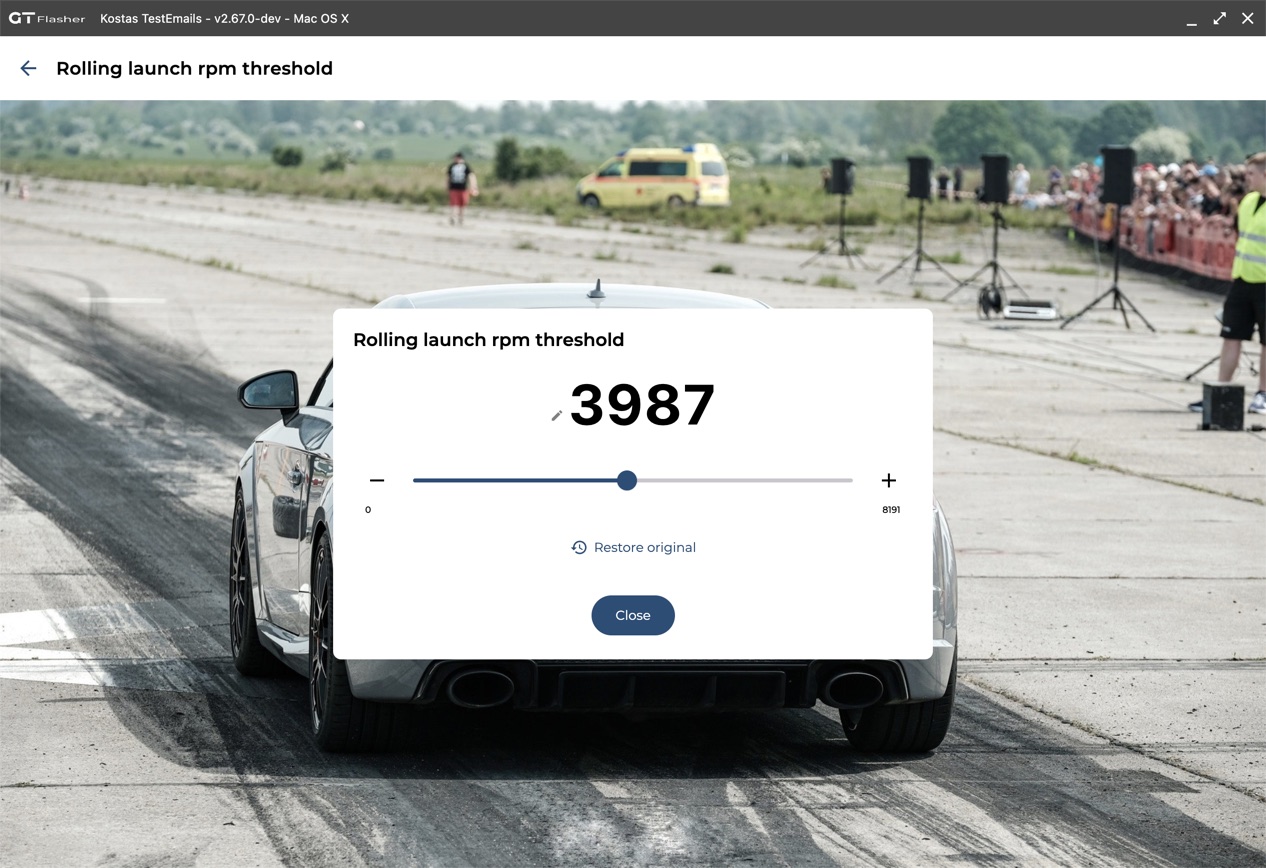
- Drag the slider, use the −/+ buttons, or tap the number (the pencil) to type an exact value.
- The valid range is shown at each end (for example
0–8191). You can't set a value outside it. - Once you've changed a value, Restore original puts that one parameter back.
Some parameters aren't a single value but a curve (a map) — those open a graph editor you adjust point by point.
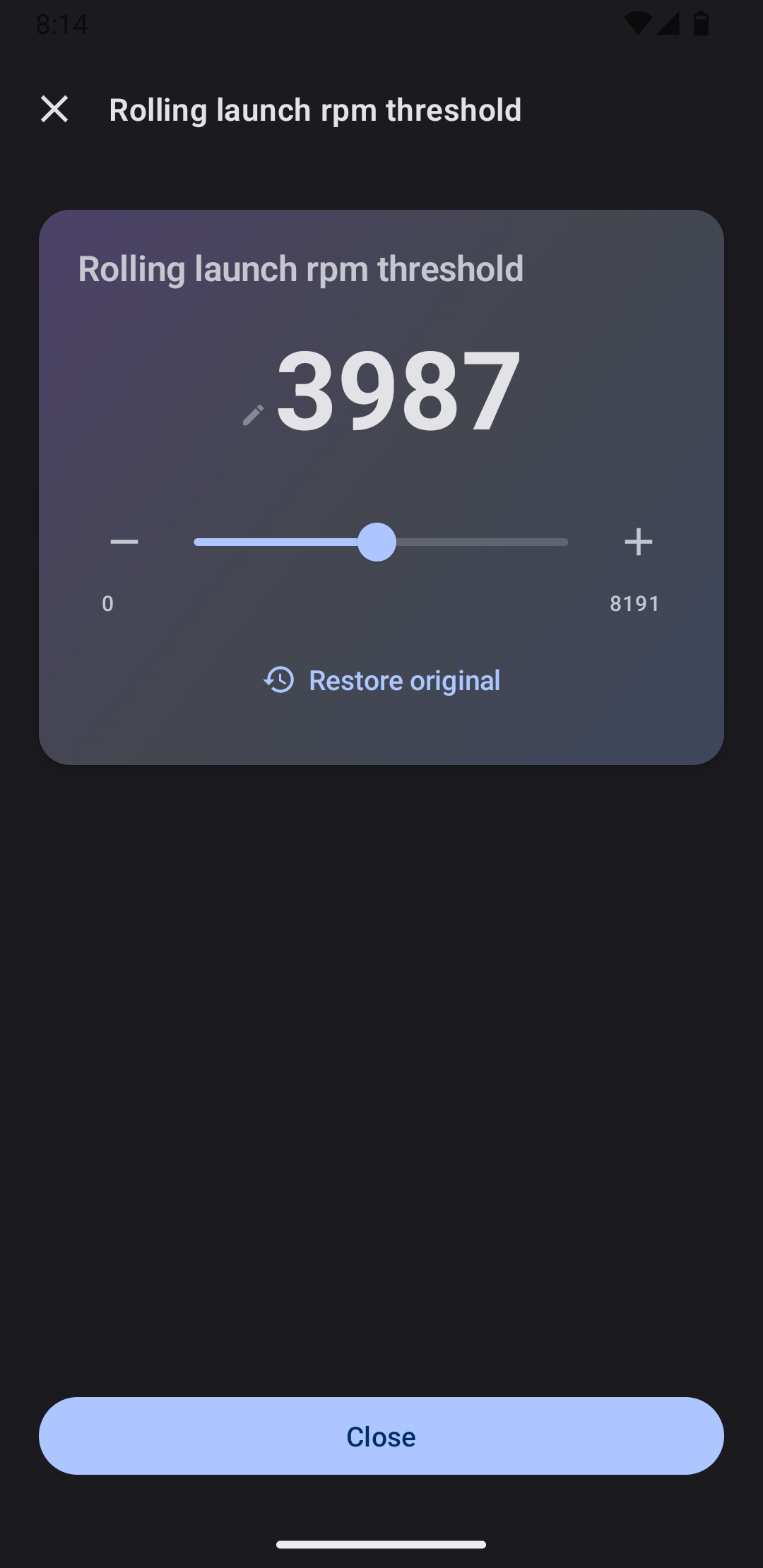
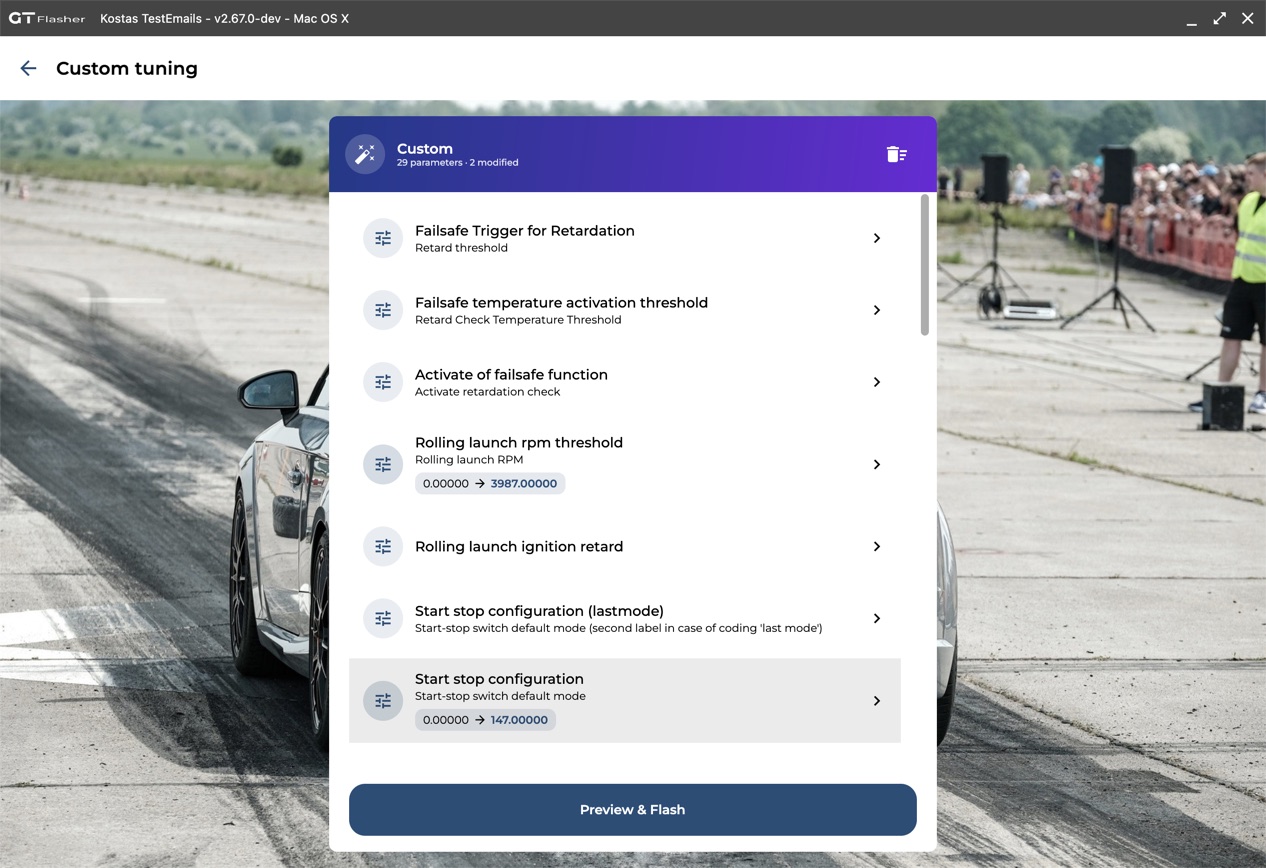
Close the parameter to return to the list. Each changed parameter now shows a before → after badge, and the header counts how many you've modified (e.g. 1 modified).
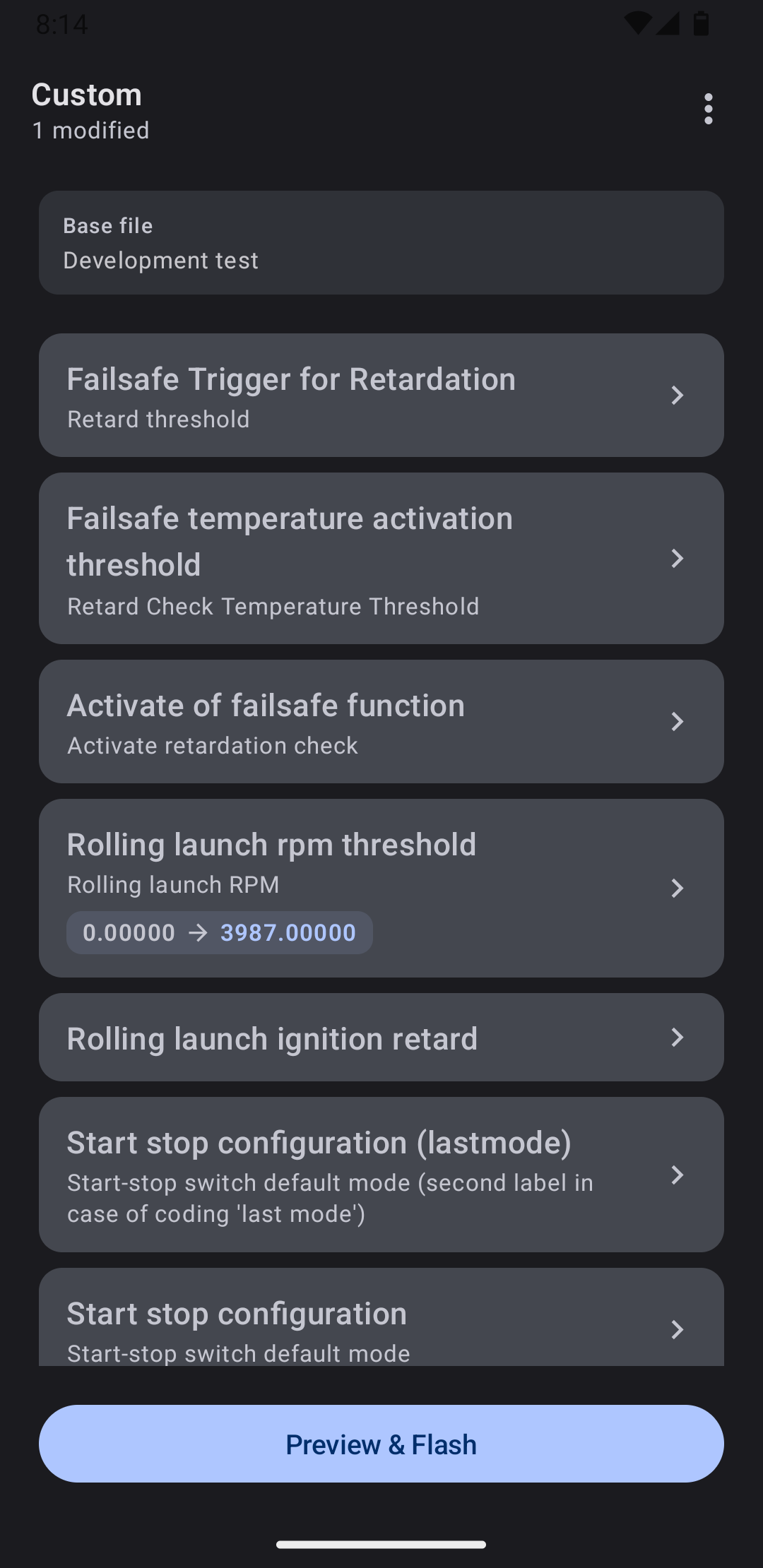
5. Review and flash
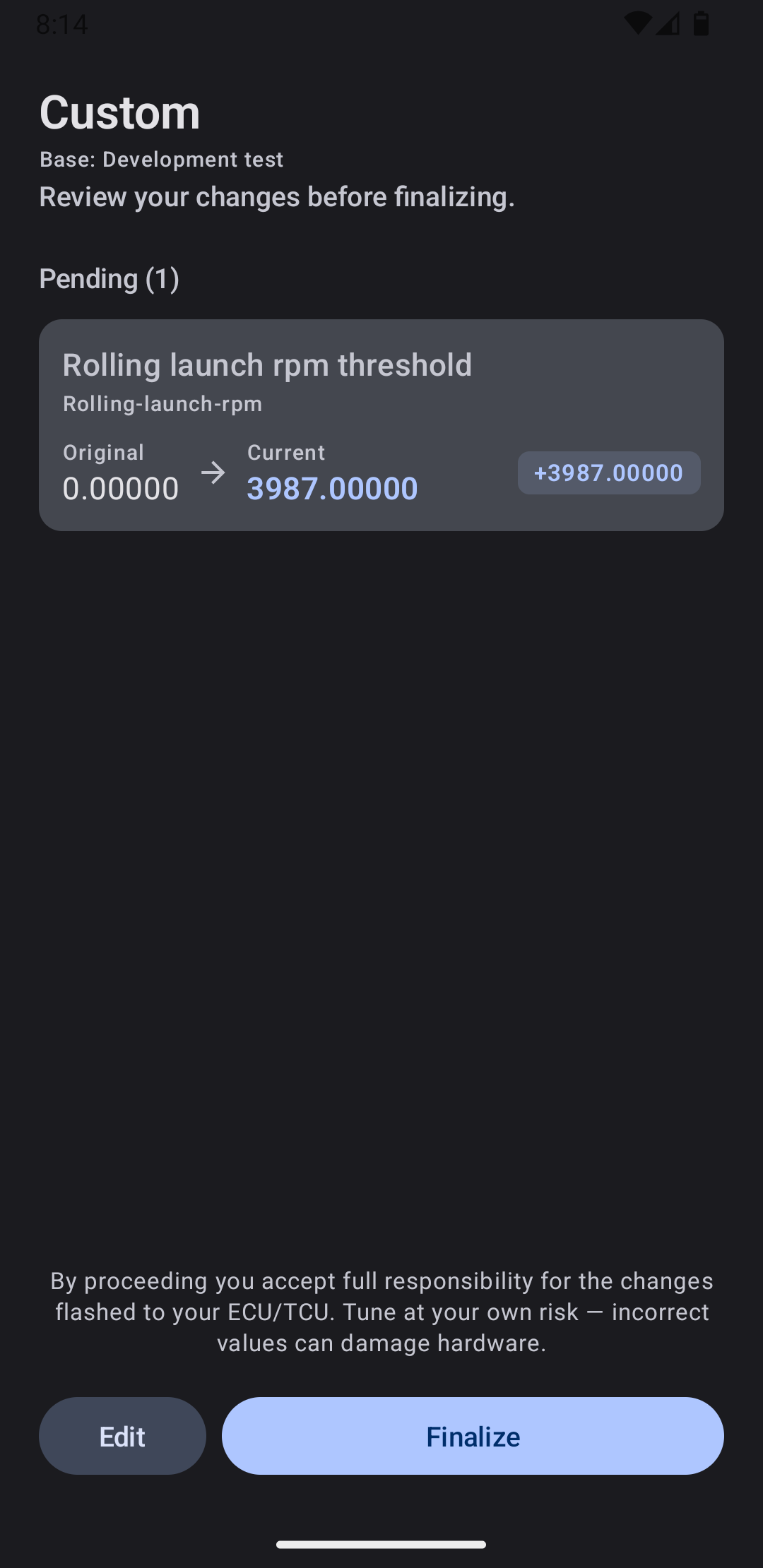
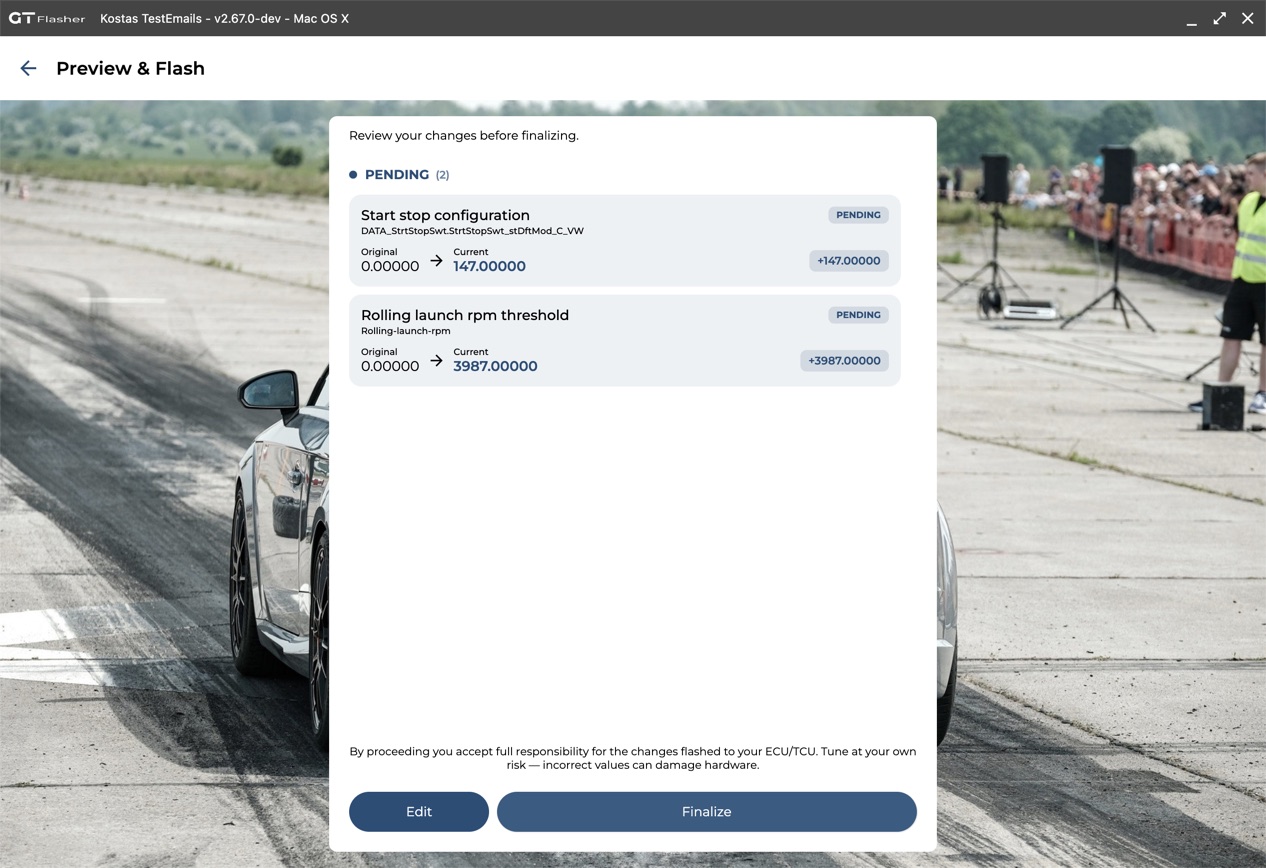
When you're done, tap Preview & Flash. The review screen lists every pending change with its original value, its new value and the difference, and repeats the responsibility note.
- Edit — go back and keep tweaking.
- Finalize — continue to flashing. From here it's the normal flash process: follow the on-screen checklist, keep the ignition/engine as instructed, keep the connection steady and don't disconnect until it finishes.
How it looks on Windows
The steps are identical on the Windows app — the layout is just wider, with the panels centred over the car image.
The Tuning available screen, with Flash without changes and Adjust calibration:
The Custom editor — the parameter list with the modified count and the before → after badges:
Editing a single parameter — the value, slider, range and Restore original:
Preview & Flash — every pending change with its original and new value, then Edit or Finalize:
Custom modifications on the web portal
Everything above happens inside the GT Flasher app. There is also a more powerful way to build a calibration from the web portal on a computer: you create named calibrations against a file you own and edit them in the full GT-tune editor — the same parameters, plus curves, maps and a 3-D view. Calibrations built this way are saved to your account; you switch on the ones you want and they show up to flash in the app.
Like in-app adjustments, web calibrations are free — they don't use tuning credits — and the same terms of use apply.
1. Open Calibrations for a file
Sign in to the portal, go to Flasher → Cars, pick your car and open its file list. Any file that supports tuning has a Calibrations button — click it.
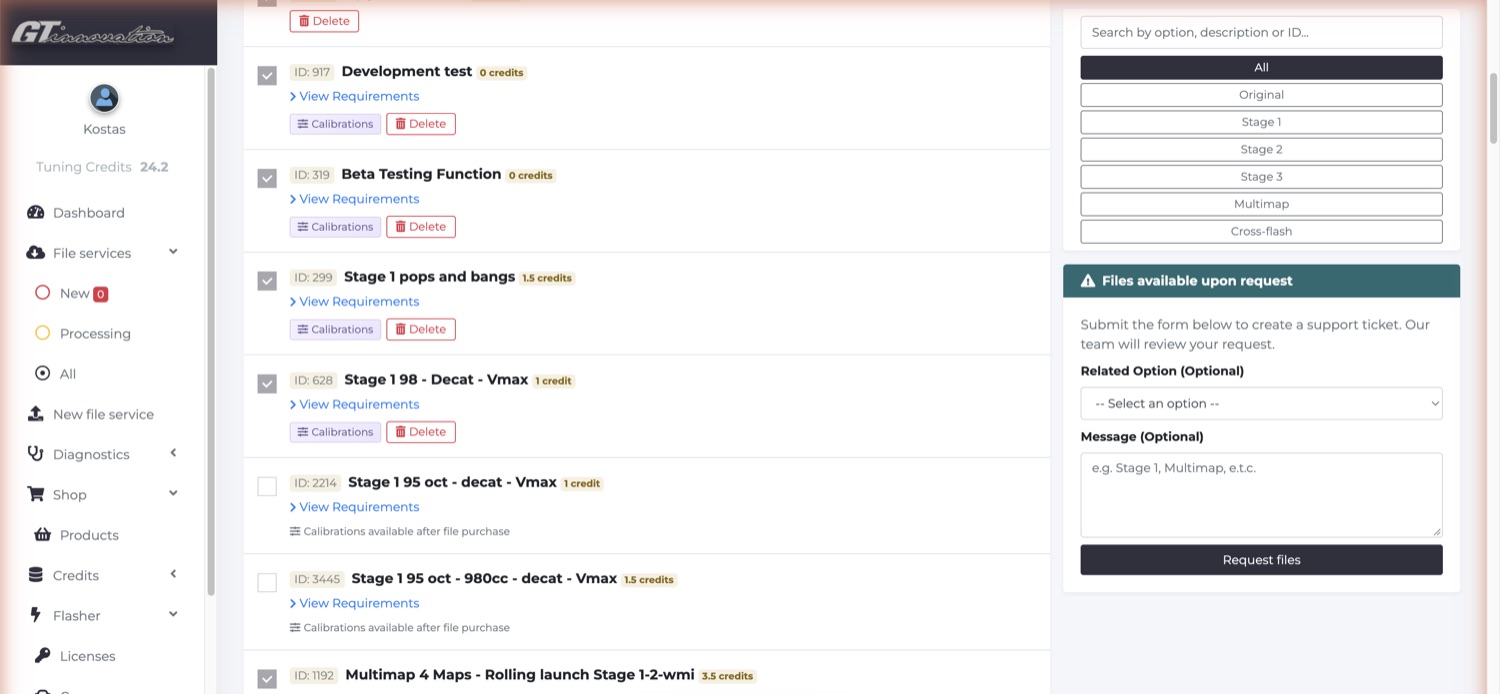
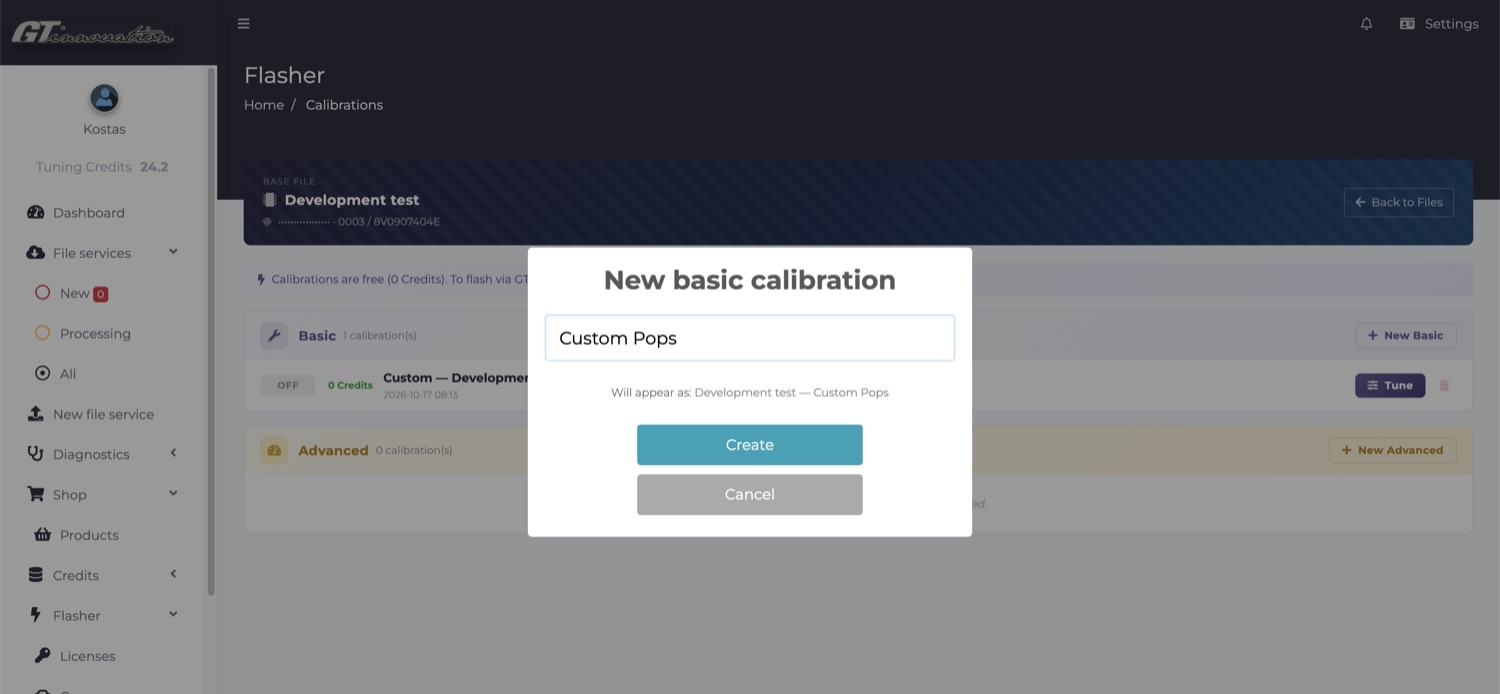
2. Create a calibration
Calibrations are grouped by level — Basic, Advanced and Expert — depending on the tuning access on your account. Each calibration is listed with an ON / OFF switch, a Tune button and the date you created it.
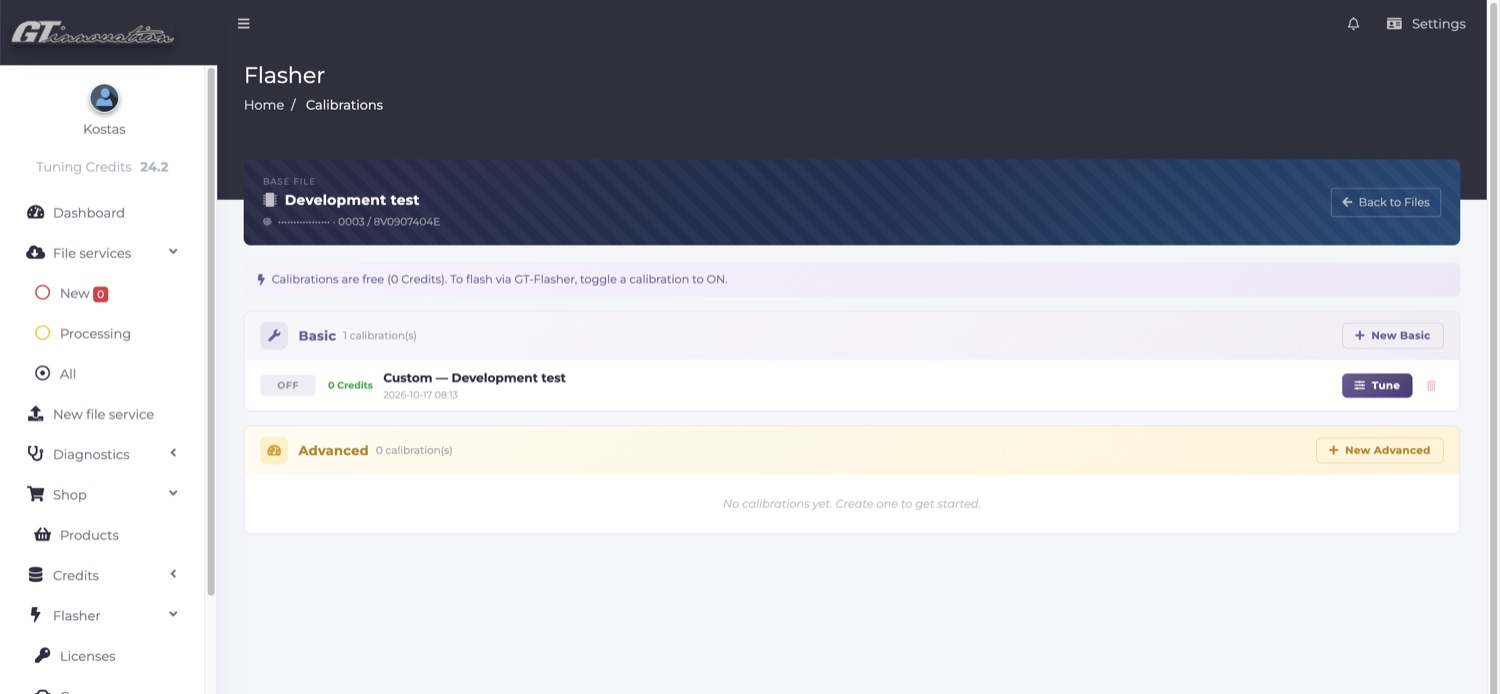
Click + New Basic (or the level you want) and give the calibration a name — it's shown as "{file} — {your name}" so you can tell your calibrations apart.
3. Accept the disclaimer
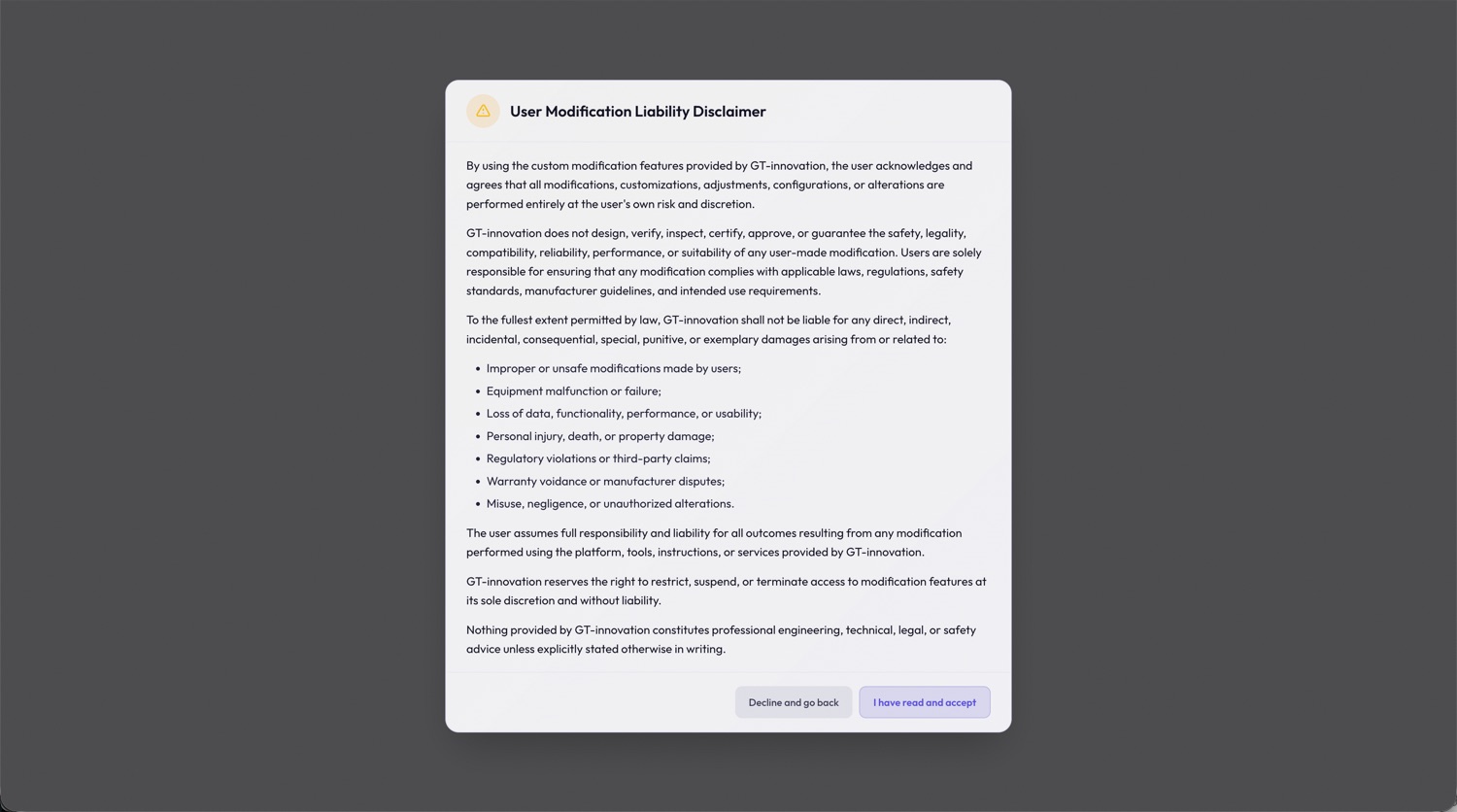
Opening the editor shows the User Modification Liability Disclaimer — the same terms as in the app. Read it and choose I have read and accept (or Decline and go back).
4. Edit in GT-tune
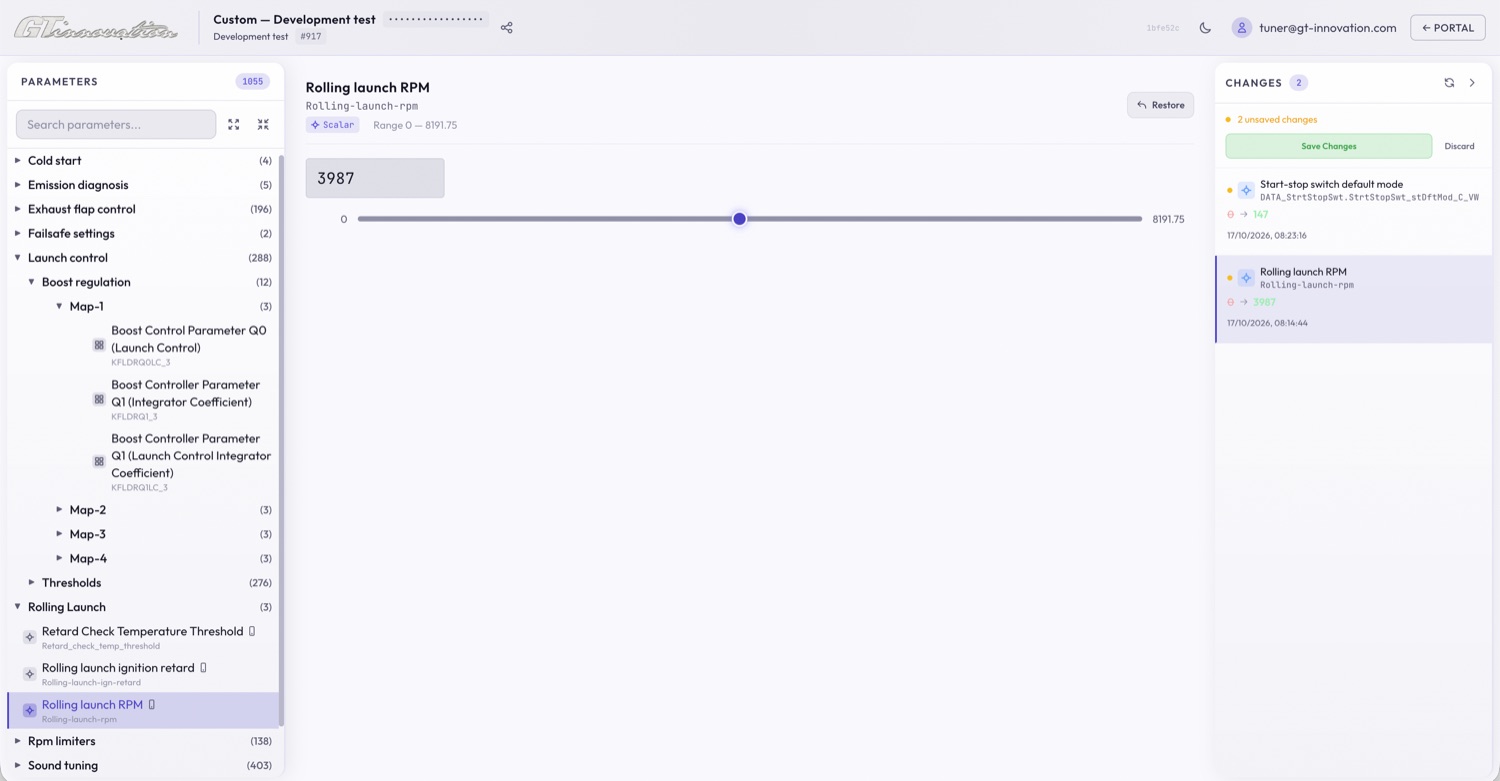
The editor lists every tunable parameter on the left, grouped by function, with a running list of your changes on the right.
-
Single values (scalars) open with a slider, the valid range and the current value. Restore puts that one parameter back to the original.
-
Curves and maps open as a table with a colour heatmap and a rotatable 3-D surface, so you can see the shape of what you're changing before you change it.
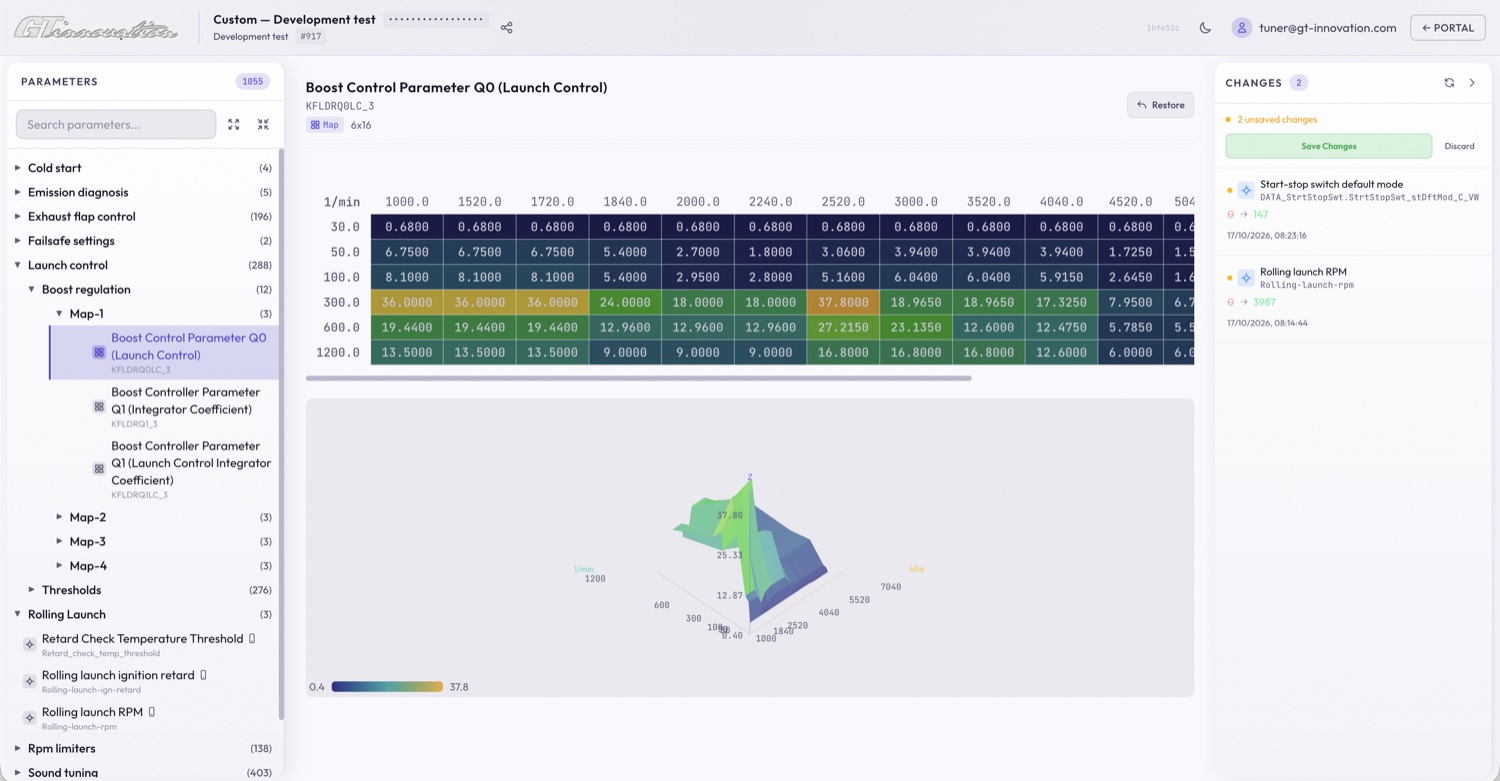
Every edit is tracked in the changes panel. When you're happy, click Save Changes (or Discard to drop them), then use ← Portal to go back.
5. Switch it on and flash
Back on the Calibrations page, switch the calibration you want to ON. It then appears for that file in the GT Flasher app, where you flash it like any other file — follow the steps and the pre-flash checklist in the flashing guide for Android, iPhone / iPad or Windows. To stop offering it, switch it OFF; to remove it, delete it.
Safety & support
- Only change values you understand. Incorrect calibration can cause poor running, warning lights, or permanent ECU/TCU damage.
- Start from the base file and change values in small steps — don't jump straight to the limits of a range.
- If you're unsure what a parameter should be, ask before you flash. Open a support ticket from the portal and include your VIN — see Your account & the portal.
- Want to adjust something that isn't listed for your file? Ask — tell support what you'd like to change and we'll see what's possible.
- To go back to stock, flash the Original file from the same list, exactly like any other flash.