How to flash your ECU (iPhone / iPad)
Flashing writes new software to your car's engine or gearbox controller — it's how a tune, an update or a return to stock gets onto the car. The app checks the critical conditions before it starts and guides you through each step; your part is simple: stable power, a stable connection, and a few minutes of patience.
Before you flash
- Connect the car to a battery charger. A voltage drop mid-flash is the most common cause of failures.
- Gearbox in Park (or neutral with the handbrake on).
- Hood open, ignition on, engine off.
- iPhone charged above 20% — the app refuses to start below that.
- Stable internet on the phone: the file is downloaded from the portal during the flash.
- Stay in the car with the phone for the whole flash; do not unplug the dongle, disable Bluetooth, close the app, or take calls.
- The file must already be available for this car's VIN in your account.
1. Open the Flashing screen
With the car connected and identified, tap the Flashing tab in the bottom bar, or the Flashing button on the ID screen. If it shows "Vehicle Not Identified", tap Go to Identification and identify the car first; if only the VIN could not be read, the Failed to read VIN prompt lets you enter it manually.
Note: if the app cannot find a specific protocol it may fall back to a Generic ECU / Generic ECU Extended / Generic TCU entry in the protocol list. These generic protocols allow identification, DTC reading and logging, but do not include flashing definitions or security unlocks — flashing will not be offered for a generic protocol.
2. Pick a file
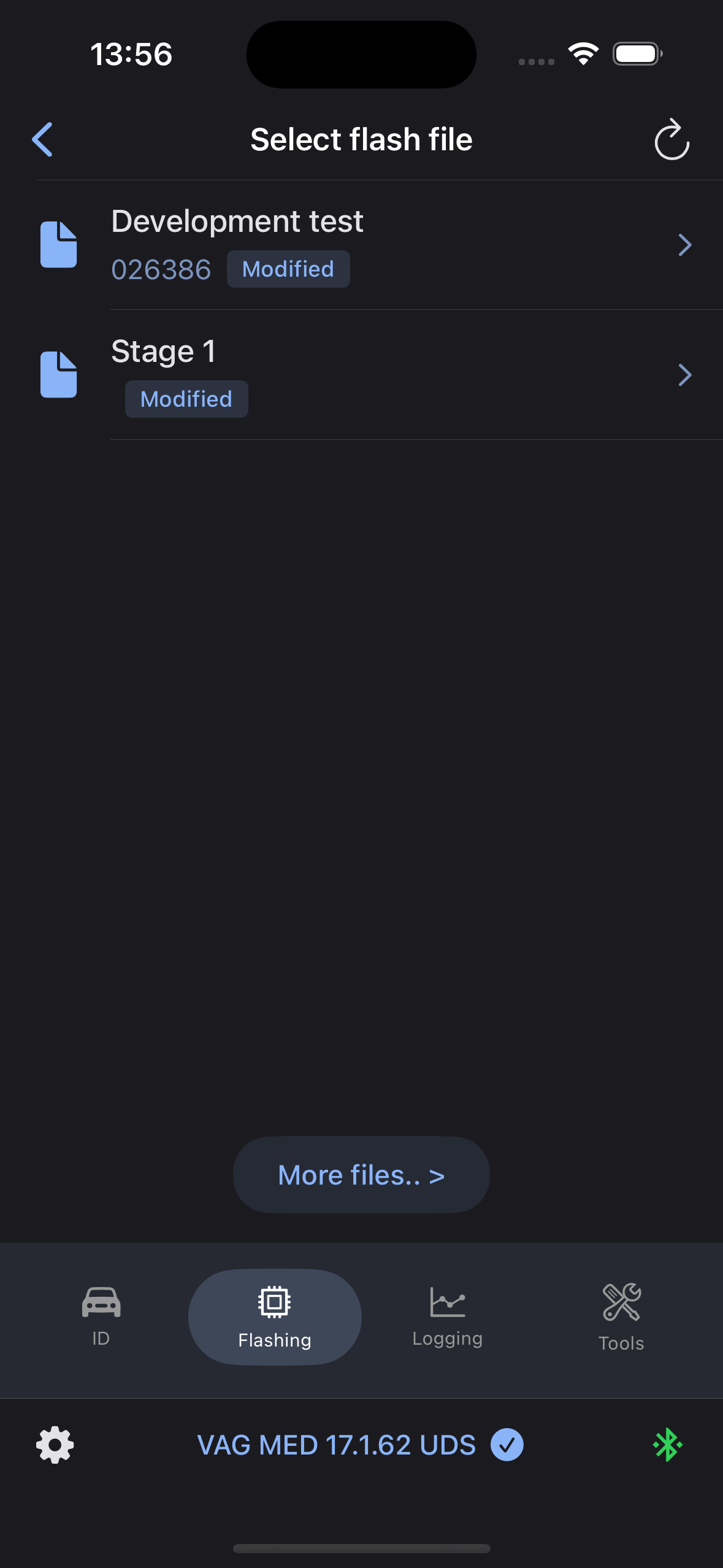
Select flash file lists the files available for your car. Each row shows the description, the file number, and a badge — Modified for a tuned file or Original for stock. Custom tunes also carry a Tuned badge. More files.. > opens the activation screen (Activate selected); if nothing is listed, Contact Us opens the portal.
Personalizing a tune
If the file supports it, a Tuning available screen appears first: Flash without changes proceeds as-is, Adjust calibration lets you tweak the listed parameters (the first time, you must accept the User Modification Liability Disclaimer). On the Preview & Flash screen, review your changes and tap Finalize — incorrect values can damage hardware, and you proceed at your own risk.
See Adjusted calibration for the full step-by-step.
3. The pre-flash checklist
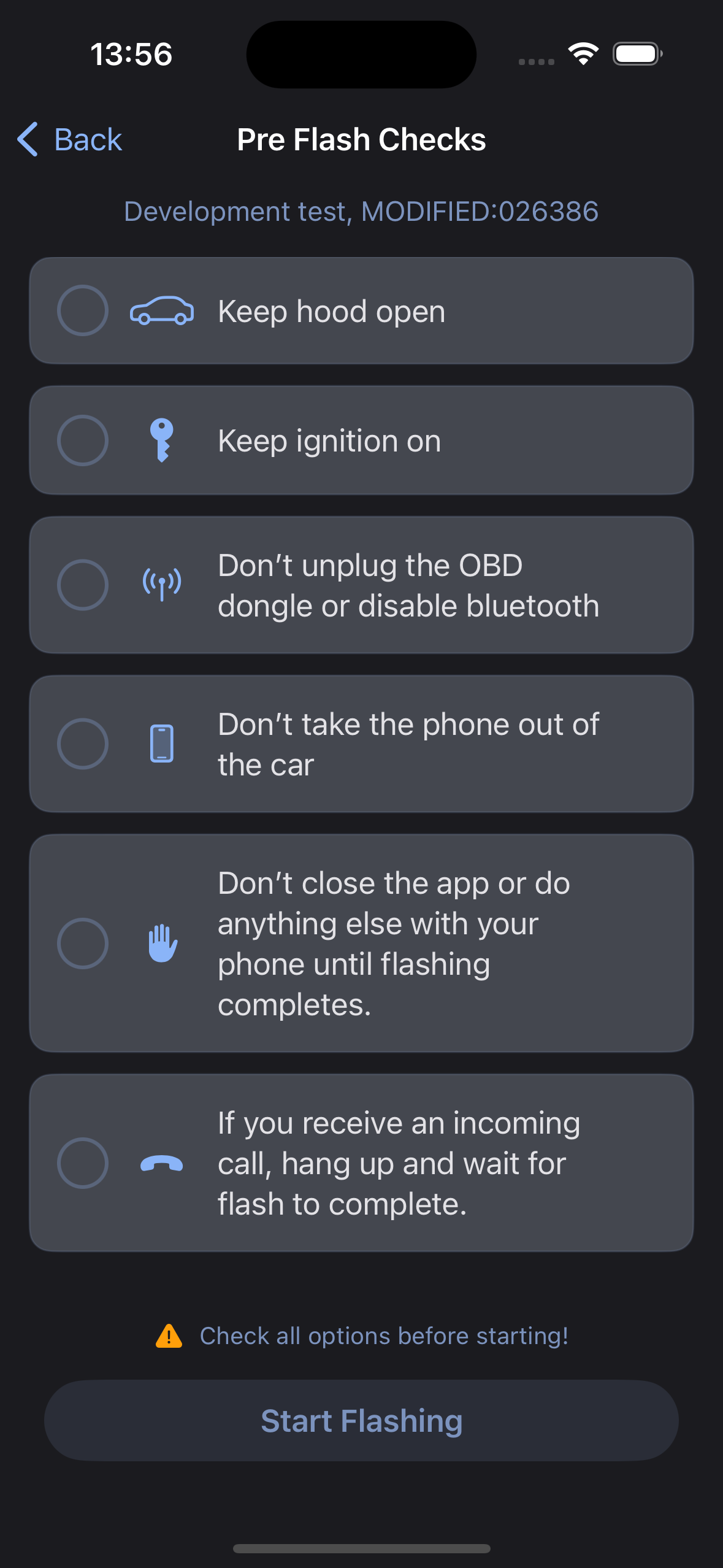
On Pre Flash Checks, confirm all six switches:
- Keep hood open
- Keep ignition on
- Don't unplug the OBD dongle or disable bluetooth
- Don't take the phone out of the car
- Don't close the app or do anything else with your phone until flashing completes
- If you receive an incoming call, hang up and wait for flash to complete
When all six are on, tap Start Flashing.
4. During the flash
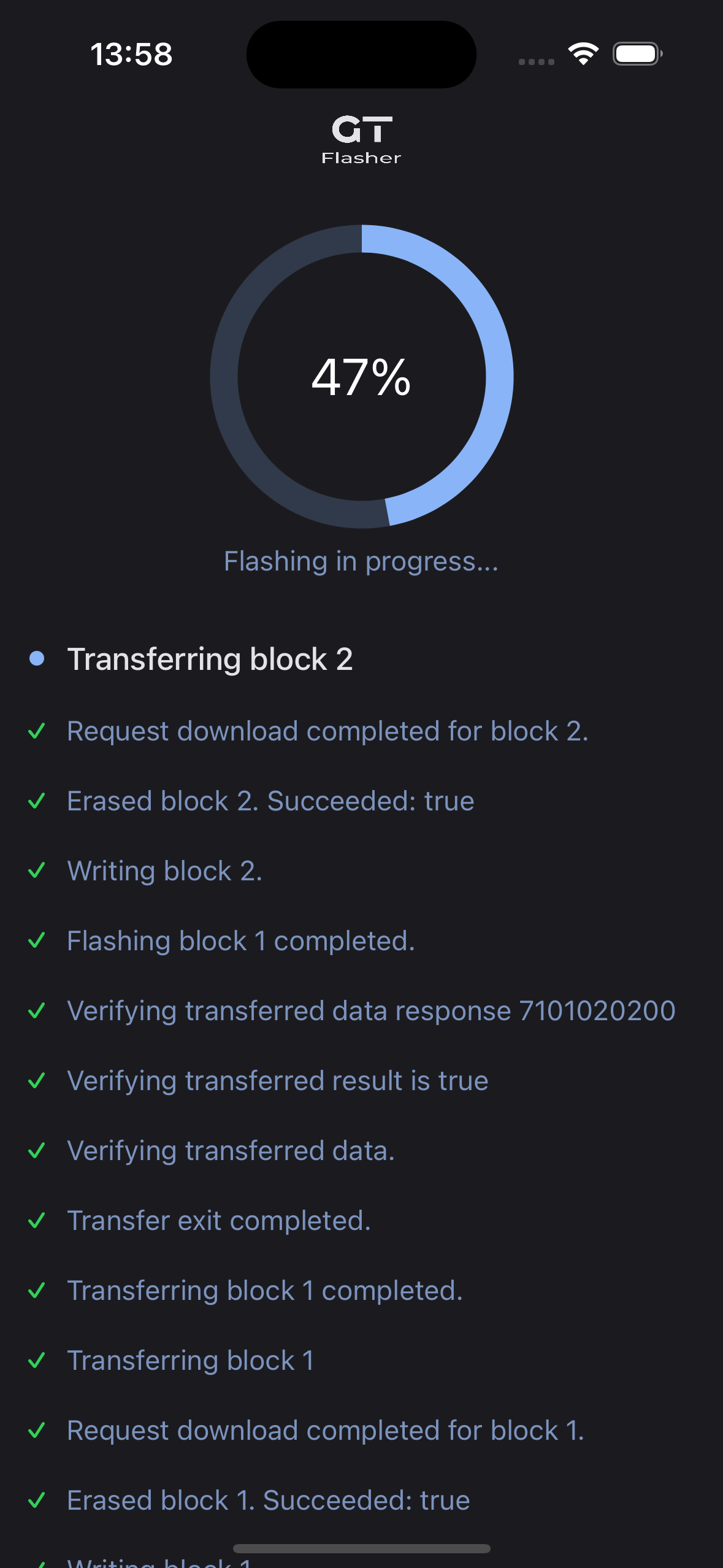
A progress ring shows the percentage written, with a live status feed below (preparing data, downloading the file, erasing and transferring blocks, verifying). Leave the phone alone — the bottom bar is hidden while the flash runs.
On MG1-family ECUs the flash pauses once with ⚠️ Action required ⚠️: switch the ignition off, wait 10 seconds, switch it back on without starting the engine, then tap OK (the button unlocks after a 10-second countdown).
On Med17 twin-ECU cars the app flashes both ECUs in one run ("Will flash ECU1 and ECU2.").
5. After the flash
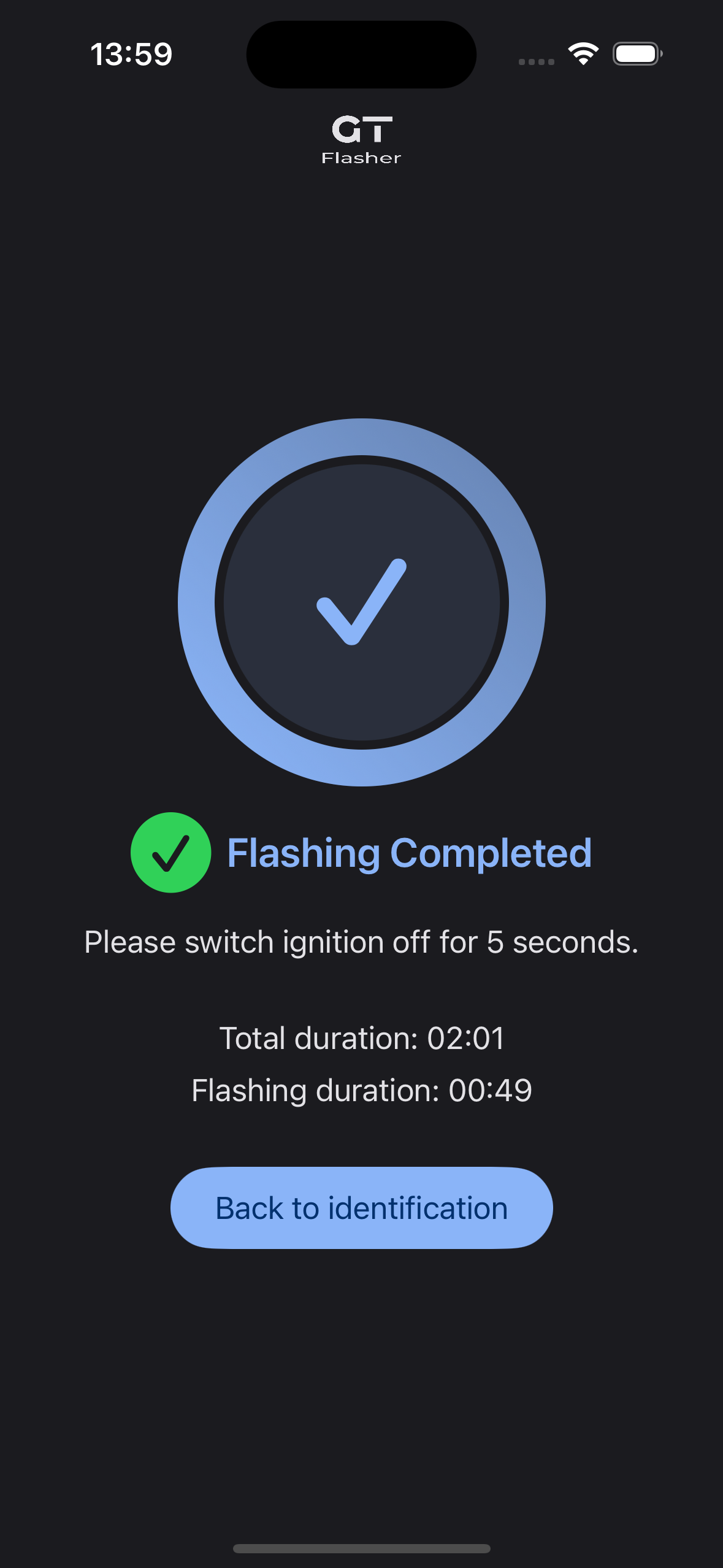
Flashing Completed shows the total and flashing durations — switch the ignition off for 5 seconds, then you're done. Back to identification returns to the start.
Right after a flash, give the ECU a few gentle pulls to adapt before judging the tune or recording support logs.
If something goes wrong
A failed flash is almost always recoverable: the error log reaches support automatically and you can simply retry. Every failure shows a dialog with Retry (restarts the whole flash) and Cancel flashing — follow the dialog's instructions first:
| Dialog | What it means / what to do |
|---|---|
| Operation failed (battery) | iPhone battery under 20% — charge it and retry. |
| Programming Preconditions Not Met | The car refused programming — the message says why (ignition off, immobilizer, temperature, engine running). Fix that and retry. |
| Connection to Your Car is Unstable | Keep the ignition on, stay close to the dongle, don't move the phone; then Retry. |
| Temporary Sync Issue | Aftermarket CAN devices interfere — remove or deactivate them and retry. |
| Unstable Network Detected | The phone's internet dropped — restore it and retry. |
| "RMBA unlock is required to flash this file..." | Flash the unlock patch first, then identify the ECU again. |
If a flash failed and the car won't start, don't keep cycling the ignition — leave the ignition on, keep the charger connected, and retry the flash; if retries keep failing, contact support with the car still on the charger.
Going back to stock
There is no separate restore button: flash the Original file from the same list, with the same precautions. If no original is listed, contact support.