Tools
Besides flashing and logging, GT Flasher has a Tools screen with a set of ECU utilities that answer everyday questions: check whether your car is ready for an emissions test (Readiness check), switch between maps without re-flashing (Multimap), reset the ECU's flash counters, read the deep identification data support sometimes needs (Extended identification), or scan a DoIP network for modules (Module scan).
Open it from the Tools tab — in the bottom bar on Android and iPhone, or in the left navigation on Windows. The tools are grouped into two sections:
- Diagnostics — reading information from the ECU.
- ECU Actions — commands that change something on the ECU.
You need a connected, identified car. Connect to your dongle and identify the vehicle first (see the logging guide for Android, iPhone / iPad or Windows). The tools talk to the ECU that's connected.
The screenshots below are from the Android app. The same tools work the same way on iPhone / iPad and Windows — the layout differs slightly (Windows shows the two sections side by side), and a couple of tools are only on certain apps or certain cars, which is called out in each section.
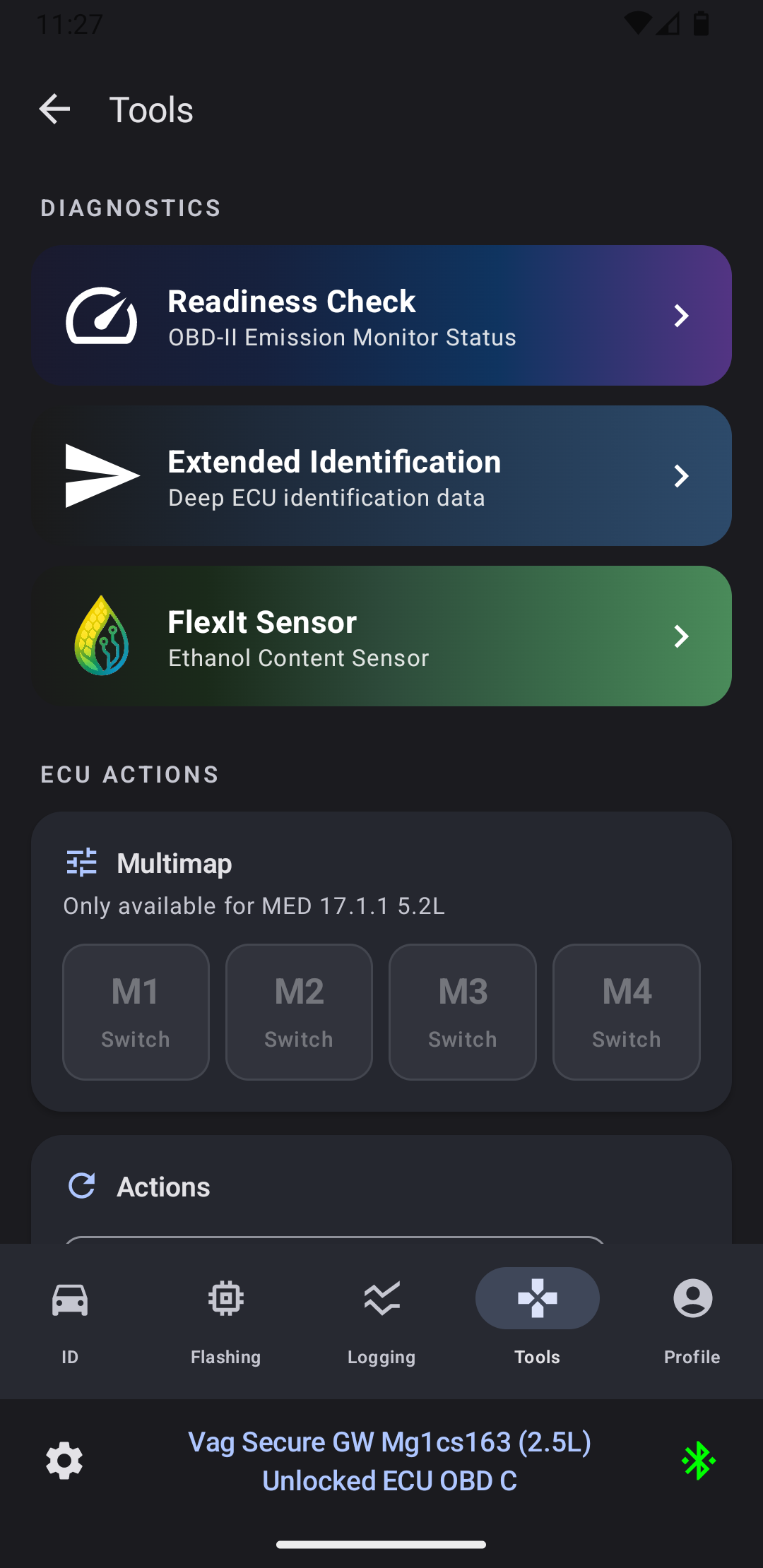
Not every tool shows up for every car. Most of these utilities only make sense — or only exist — on specific engine controllers, so the Tools screen adapts to the ECU you're connected to. Each section below says where it's available. For which ECU is in your car, see Supported vehicles & ECUs.
The Tools screen also lists FlexIt Sensor — the setup for the GT-FLEX-IT ethanol sensor. That's a separate accessory with its own flow and isn't covered on this page.
Readiness check
Diagnostics · available on every car and every app.
Readiness Check reads the car's OBD-II emission monitors — the ECU's self-tests for things like the catalyst, oxygen sensors, EGR and evaporative system. After a battery disconnect or a cleared fault, these monitors reset and slowly turn ready again as you drive; an emissions (MOT / TÜV / inspection) test needs them complete.
Open Readiness Check and it queries the ECU automatically. You get:
- A complete / total count (e.g. 6 / 8) and an overall status — ALL MONITORS COMPLETE or MONITORS INCOMPLETE.
- The check-engine light (MIL) state — MIL ON or MIL OFF.
- Each monitor listed as READY, NOT READY or N/A (not supported on your engine), split for petrol and diesel engines.
Use Run Readiness Check / the refresh icon to read again. This is a read-only check — it changes nothing on the car.
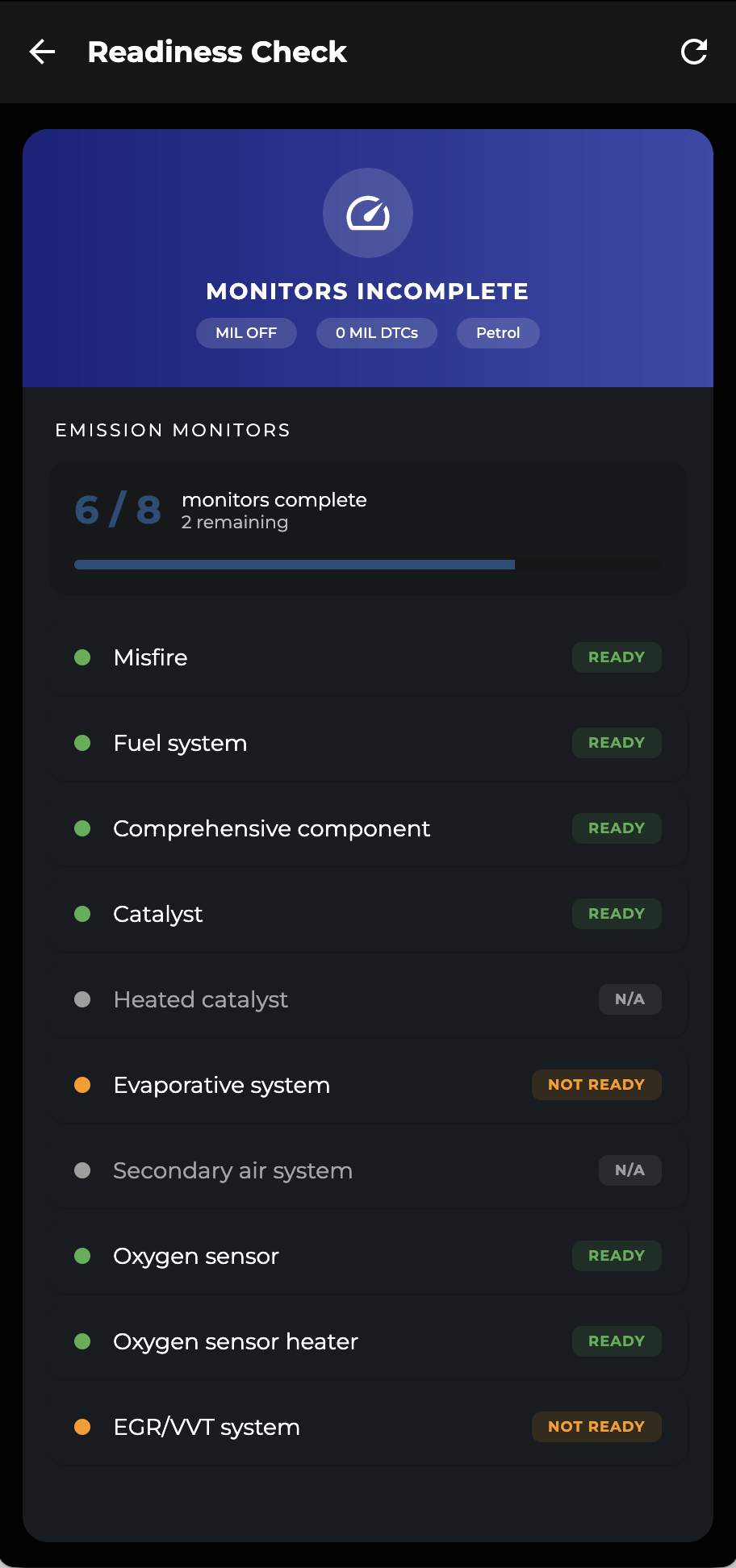
Good practice: after you flash or clear fault codes, the monitors reset. Drive a normal mixed cycle to let them complete again before an emissions test, and check progress here.
Multimap (map switching)
ECU Actions · available only on the 5.2 V10 (MED 17.1.1 5.2L).
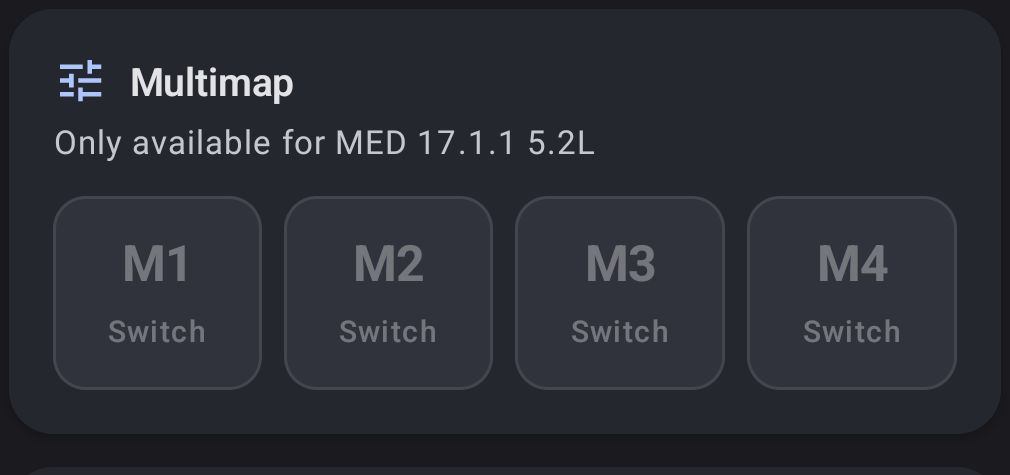
Some files are built with several selectable calibrations — maps — and Multimap switches the ECU between them without re-flashing. Tap M1, M2, M3 or M4 and then Switch to activate that map.
This is only supported on the 5.2-litre V10 engine controller (MED 17.1.1 5.2L — Audi R8 and Lamborghini Huracán). On any other car the buttons are shown but disabled, with the note "Only available for MED 17.1.1 5.2L" — that's expected, not a fault.
Reset counters & ECU actions
ECU Actions · the commands depend on your ECU — many cars show none.
The Actions card is a drop-down of advanced ECU maintenance commands. Which commands appear depends entirely on the connected ECU; pick one and press the send button to run it. Examples you may see:
- Reset Counters / Reset Attempt counters / Reset Cboot counters / Reset Successful Counters — clear the ECU's internal flash-attempt counters (used on some Bosch MED controllers, e.g. the 2.5 L RS3 / TT RS).
- Unlock Full RMBA — remove the read/flash block on controllers that need it before they can be programmed.
- Read Extended Identification — read extra identification data on MG1-family controllers (see below).
On many cars — including Simos 18 and the DSG/DQ gearboxes — there are no actions and the list is empty; that's normal.
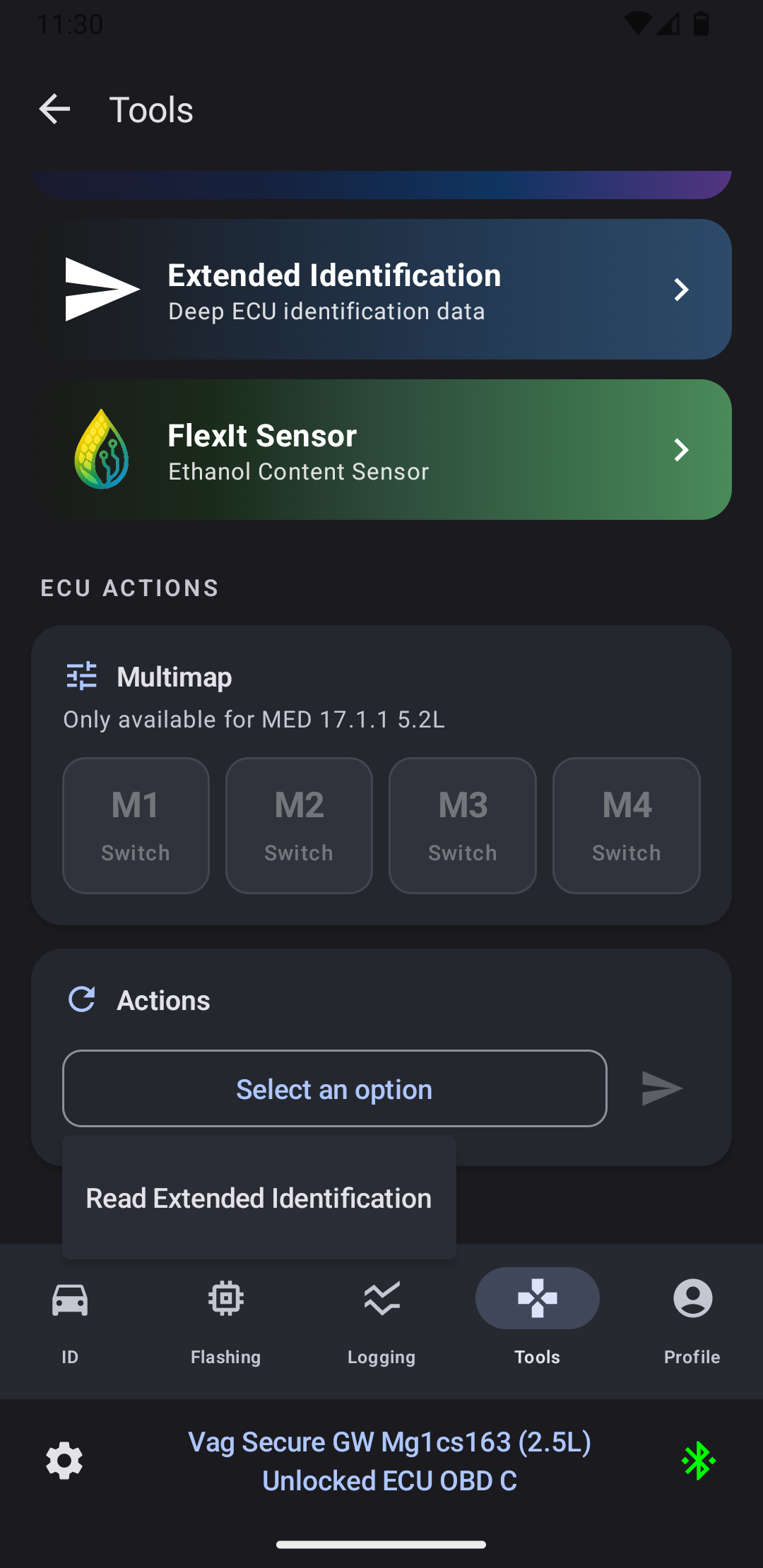
These commands act directly on the ECU. If you don't know what a command does, don't run it — ask support first (include your VIN; see Your account & the portal).
Extended identification
Diagnostics · MG1-family controllers only.
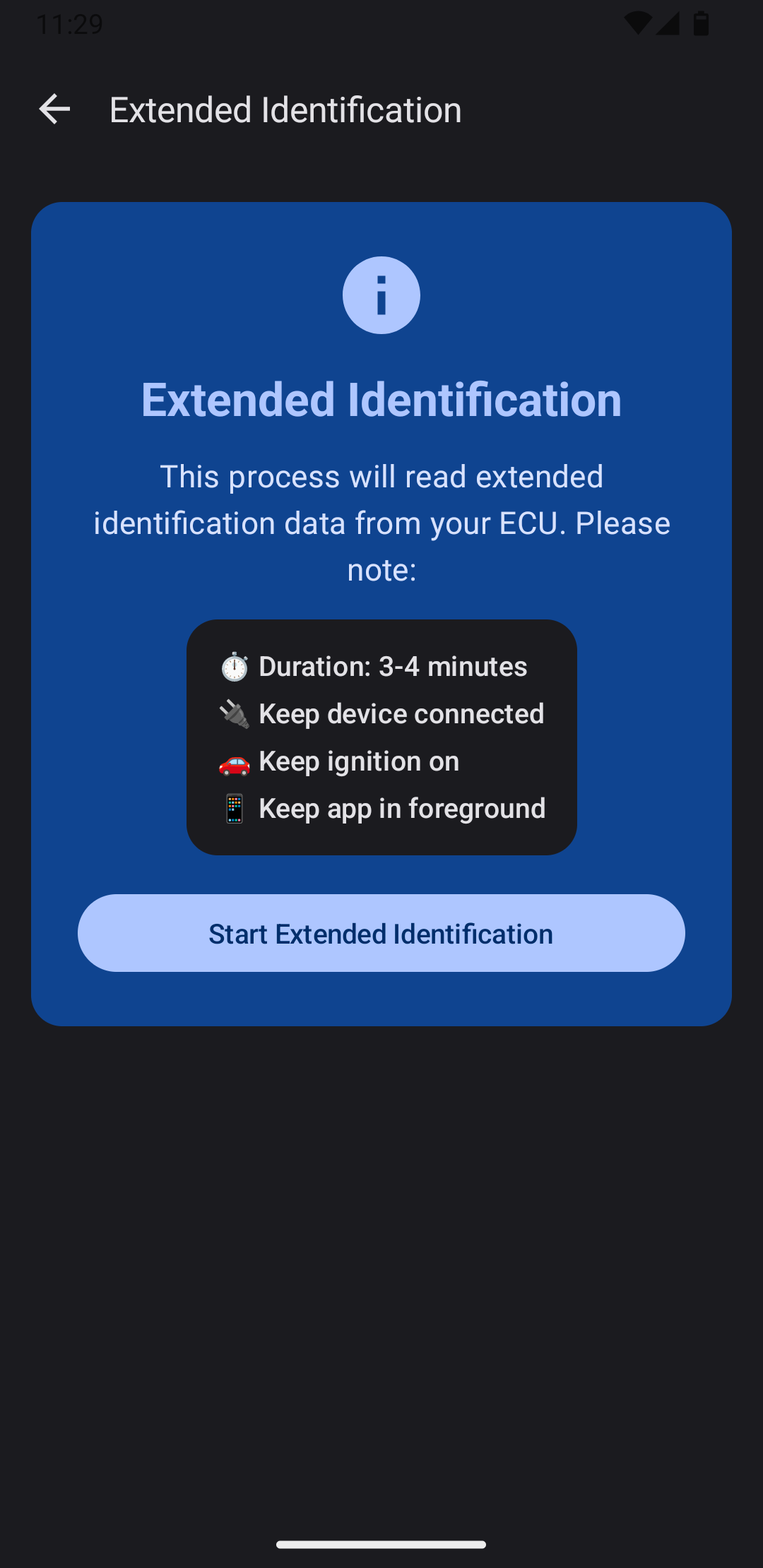
On newer Bosch MG1 engine controllers, Extended Identification reads a deeper block of ECU identification data than the normal identification screen — useful when support needs the exact controller details for your car. Open the card and you get a short briefing — the read takes 3–4 minutes, and you must keep the device connected, the ignition on, and the app in the foreground — then tap Start Extended Identification to run it.
The card only appears when you're connected to a supported MG1-family controller (for example the 2.5 L MG1 in the Audi RS3 8Y); on other ECUs it isn't shown. The same read is also reachable from the Actions list as Read Extended Identification on those controllers.
Module scan (DoIP) — Windows only
Diagnostics · Windows app only.
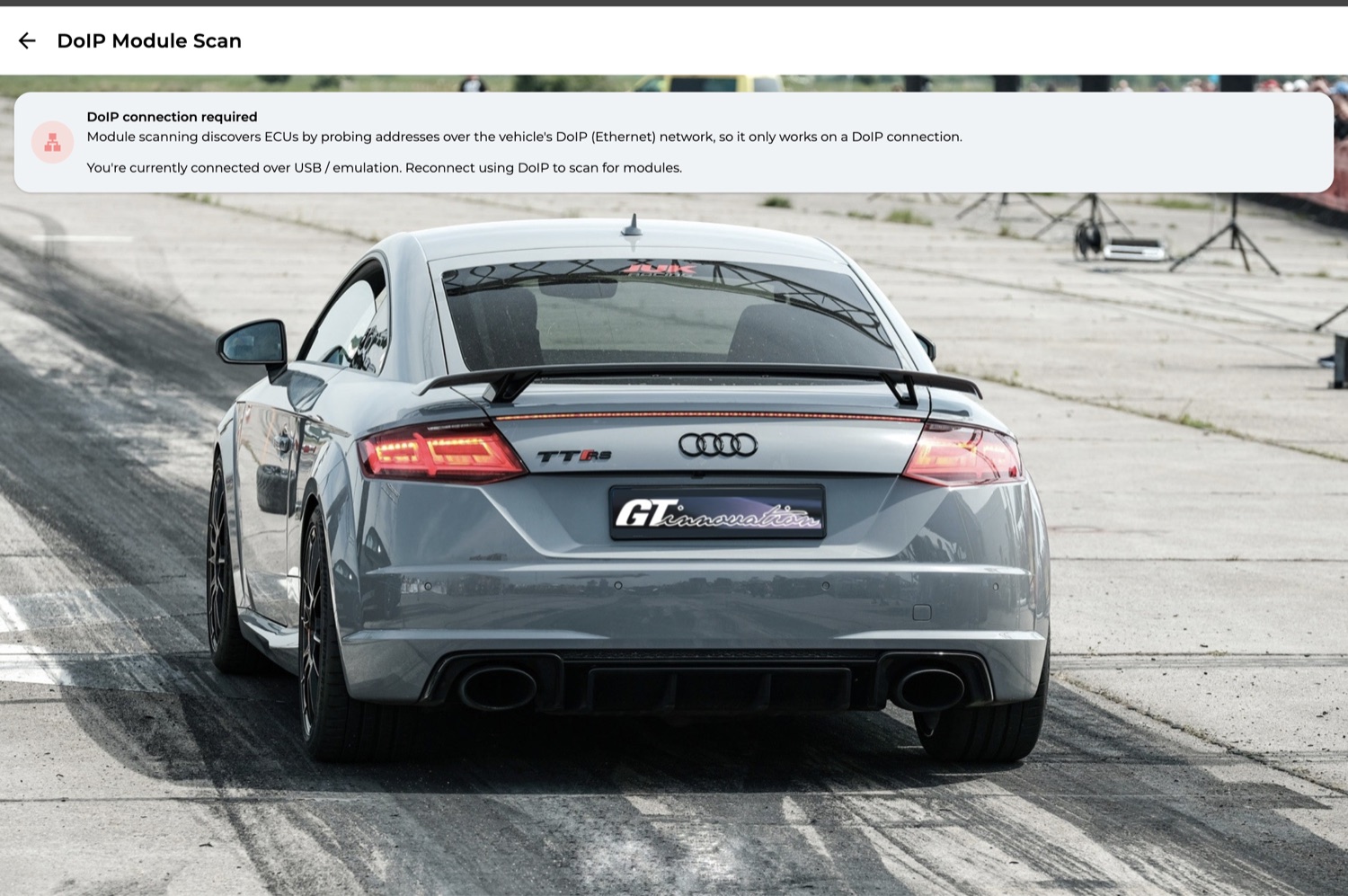
On the Windows app, Module Scan discovers the control modules on the car's DoIP (Diagnostics over IP / Ethernet) network by probing addresses over it, and lists what it finds. It only works over a DoIP connection (Ethernet, on supported cars) — if you're connected over USB or Bluetooth instead, the screen says so and asks you to reconnect using DoIP. This tool isn't on the Android or iPhone apps.
Safety & support
- The Diagnostics tools (readiness, extended identification, module scan) only read from the car and are safe to use.
- The ECU Actions (map switching, reset counters) change something on the ECU. Only use a command you understand.
- If a tool doesn't appear, your ECU doesn't support it — that's by design. If you think it should and it's missing, contact support with your VIN (see Your account & the portal).
- Is there a tool or command you'd find useful that isn't here? Tell support — requests like these shape what gets added next.