How to update your GT Flasher dongle
Firmware updates bring fixes and improvements to your dongle. Updating takes only a few minutes, from a web page in your browser over the dongle's USB cable — not from the phone apps.
Before you start
- A computer with Google Chrome, Microsoft Edge, or Opera (the updater uses Web Serial, which Safari and Firefox don't support).
- The USB-C cable from the dongle's case.
- A stable internet connection and, on a laptop, enough battery or the charger plugged in — the update must not be interrupted.
- The dongle's drivers installed on the computer. If the dongle doesn't appear in the port list later, install the drivers first, then try again.
- The dongle unplugged from the car — connect it to the computer by USB only, not to the OBD port at the same time.
1. Open the updater and connect
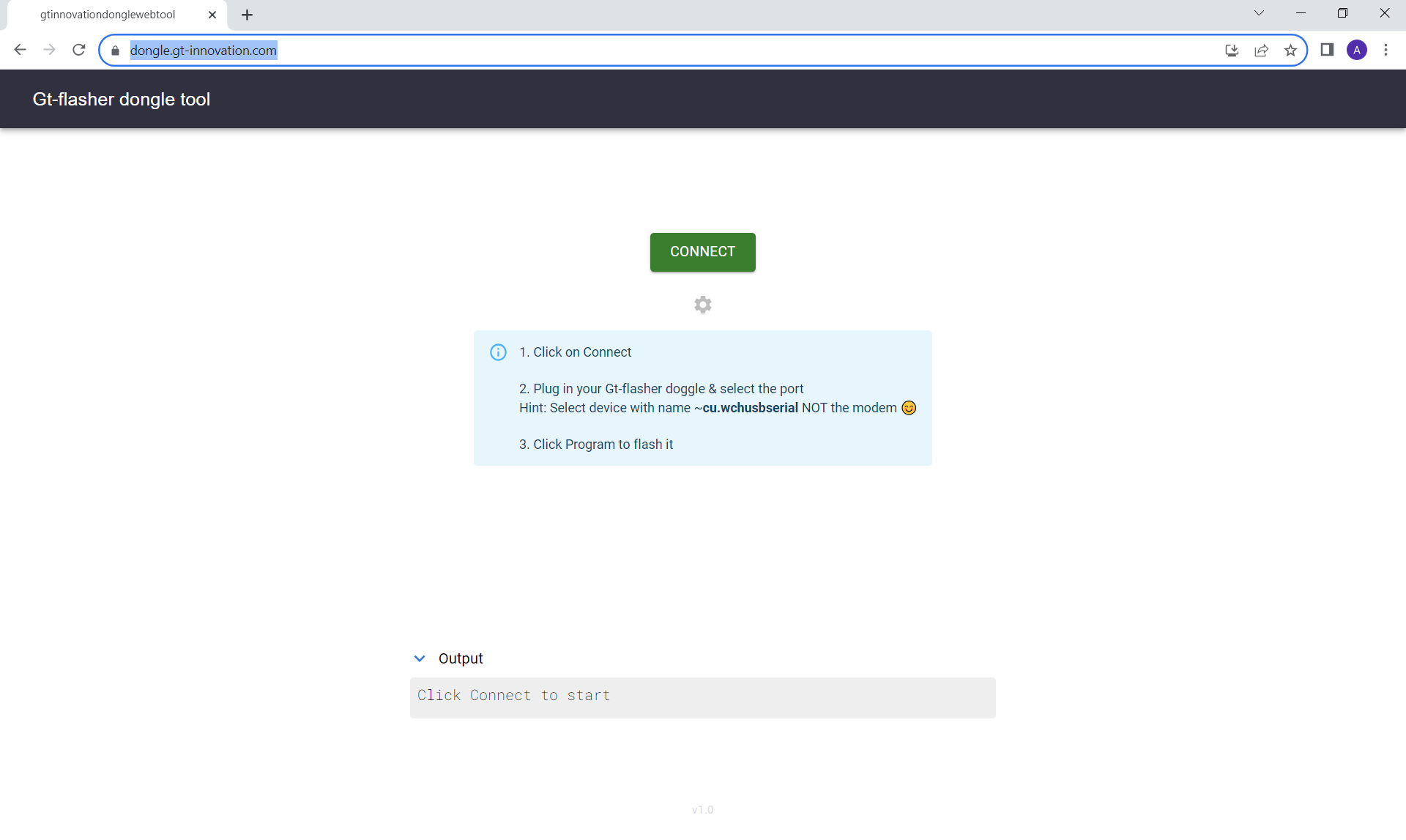
Open your browser and go to https://dongle.gt-innovation.com. Plug the
dongle into the computer with the USB cable, then click the green
Connect button.
2. Pick the dongle's port
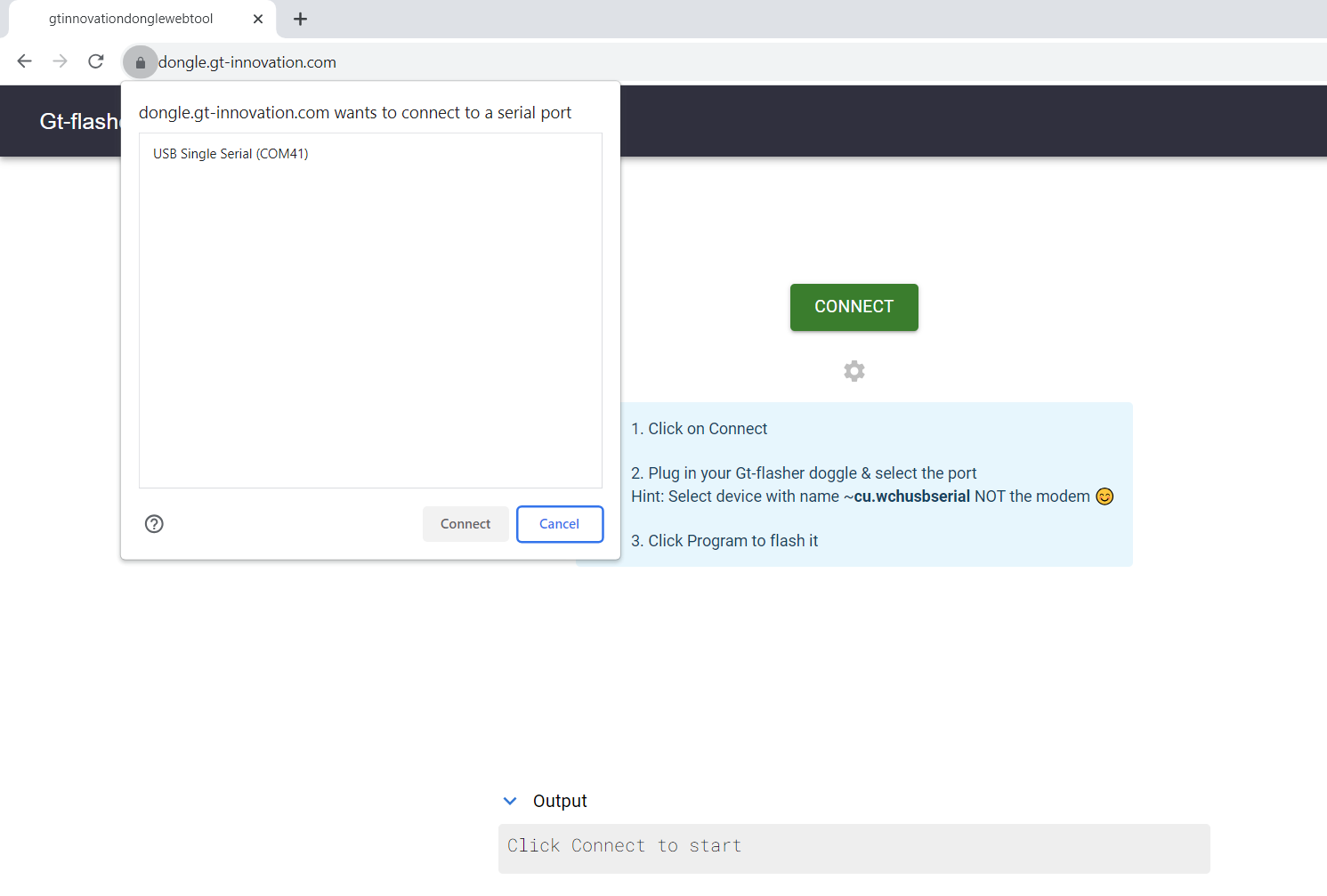
The browser shows a list of serial devices. Choose the GT Flasher dongle — on
macOS it's the one named like cu.wchusbserial… (not the modem entry);
on Windows it appears as a USB serial device on a COM port (the COM number
varies from computer to computer). Select it and confirm.
Once connected you'll see a green confirmation, and the buttons change to Program / Erase.
3. Program the new firmware
Click Program. A dialog warns "Flashing new firmware will override the current firmware." — click Continue. The update runs; you can watch the progress in the Output panel at the bottom (it detects the flash, then writes and reports a percentage).
Click Program only. Do not click Erase (it wipes the dongle) or Program dev firmware (for testing only).
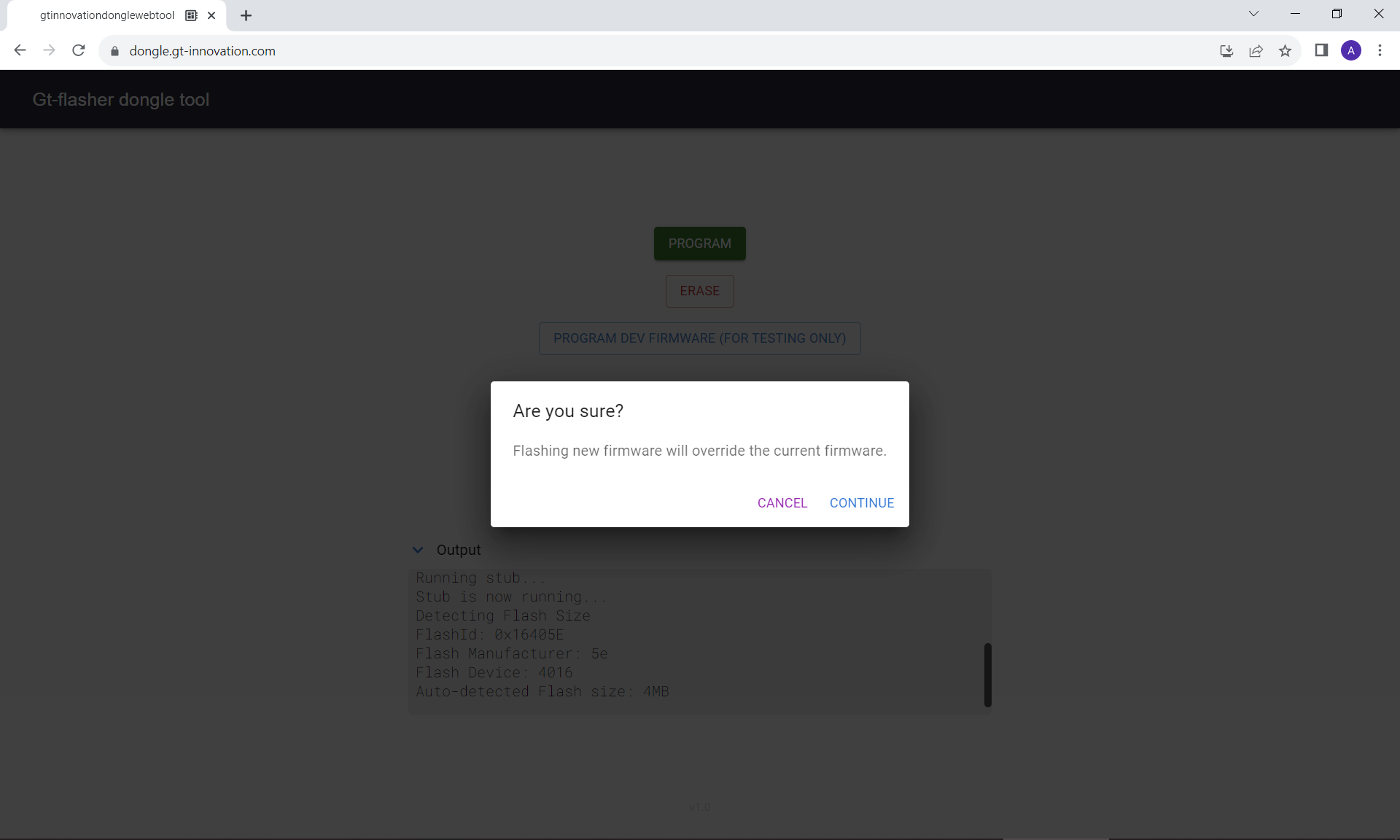
Don't interrupt it. A stable internet connection and enough battery are essential — if the update is interrupted, the dongle may not connect afterwards and may need recovery.
4. Finish
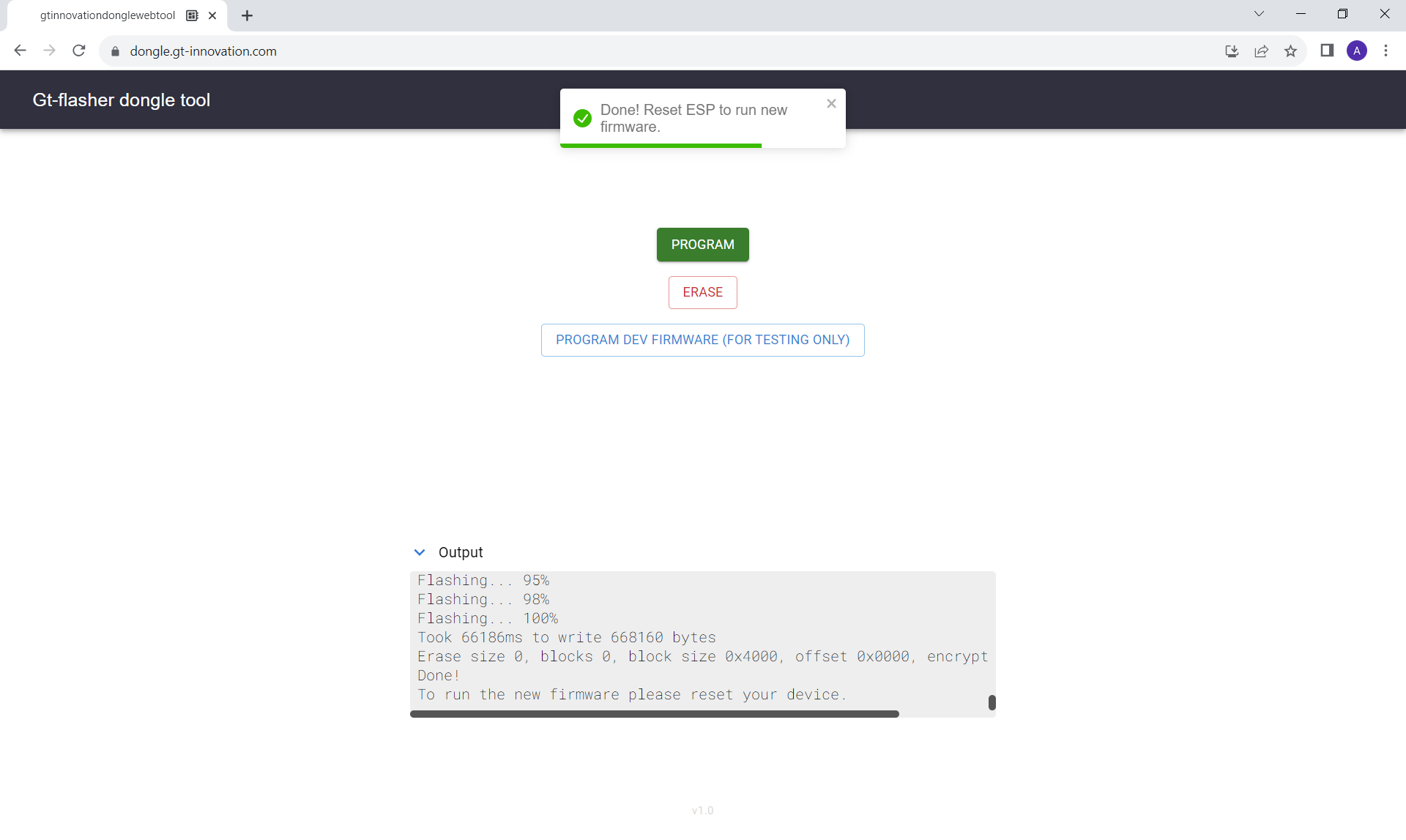
When it's done you'll see "Done! Reset ESP to run new firmware." and the output ends with "To run the new firmware please reset your device."
Reset the dongle by unplugging it and plugging it back in. That's it — the dongle is up to date and ready for flashing or logging.
If the dongle doesn't appear
- Make sure the drivers are installed, then reconnect.
- Try a different USB port or cable (use the supplied cable).
- Use Chrome, Edge, or Opera — other browsers can't talk to the dongle.