Your account and the web portal
GT Flasher works together with your GT-Innovation account on the web portal at portal.gt-innovation.com. Your cars, your flash files and your uploaded logs all live in that account — the app signs in with the same credentials. Without an account the app can't be used, so start here.
1. Create your account
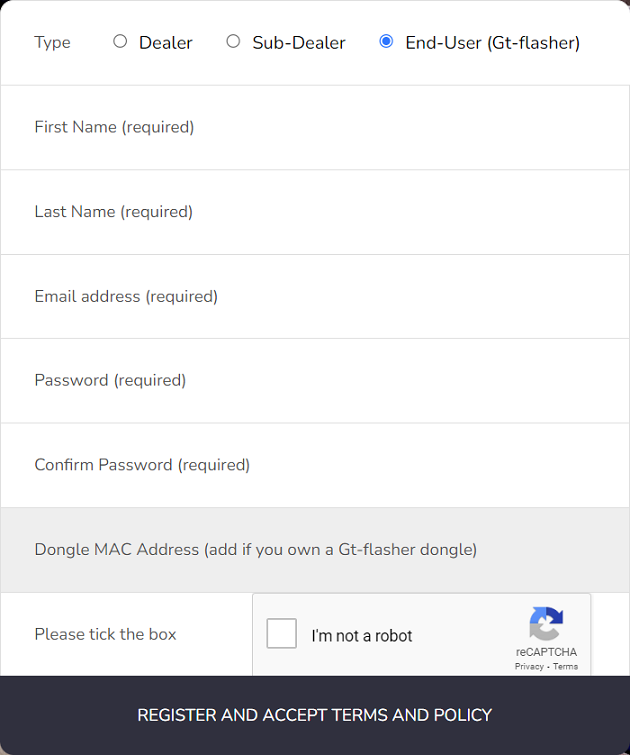
- Go to portal.gt-innovation.com and open the registration page.
- Pick your account type. There are three — Dealer, Subdealer and End user; if you received a GT-Flasher dongle, choose End User.
- Fill in your details. If you enter the MAC address printed on the slip
inside your dongle's case (a six-pair address such as
45:94:EA:89:0F:5A), your account is activated immediately. If you don't have a MAC address, request one from your dealer. - Submit the form. You'll get an email once the account is active, and can then sign in — on the portal and in the app.
2. Download the app
Install GT Flasher on your device from its official store. These links don't change:
- Android phone or tablet — Google Play
- iPhone / iPad — App Store
- Windows PC — Microsoft Store
On Windows, if you use the GT-Flasher OBD dongle you also need its USB drivers — see Update your dongle, and keep the dongle's firmware up to date there too.
Sign in to the app with your portal email and password.
3. Your cars
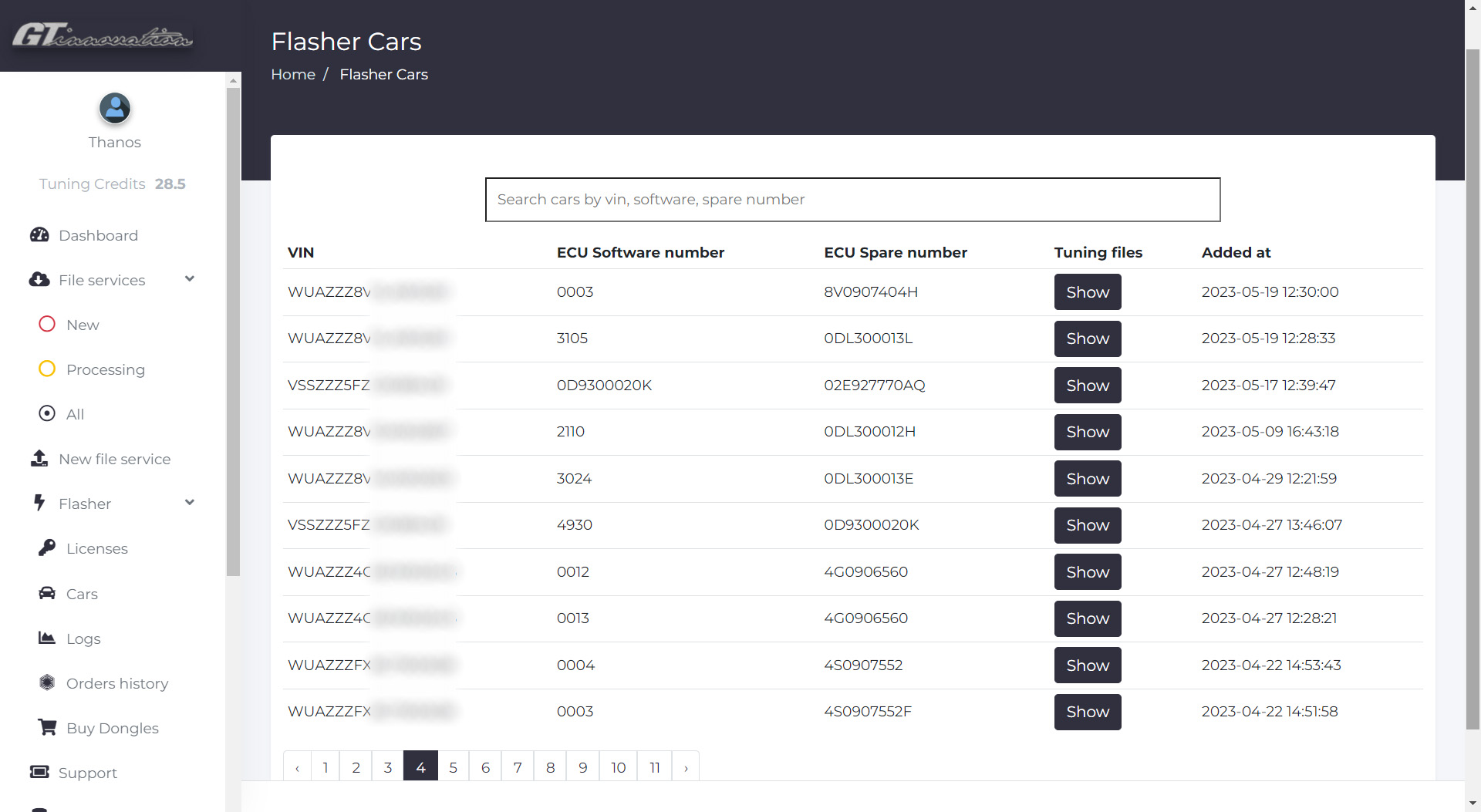
Every car you identify with the app is registered automatically to your account under the Cars section, with its VIN, software number, software version and more.
For each VIN:
- Show reveals the files and options available for that car and software version.
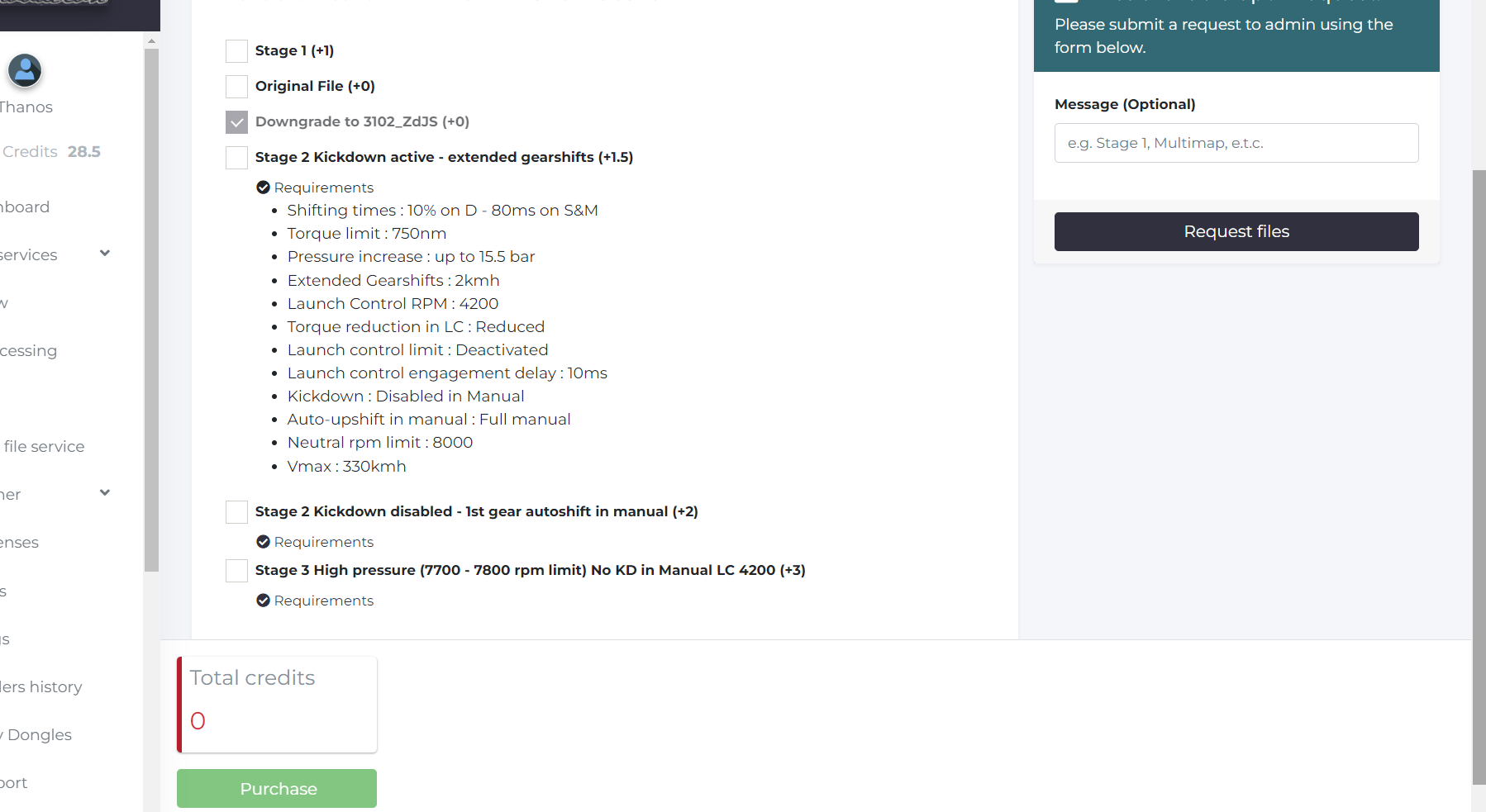
- Requirements lists the prerequisites for a calibration — review these before you activate a file, so it flashes cleanly.
4. Flash files
Flash files are tied to a specific car's VIN. Once a file is available for your VIN it appears in the app's flashing list, ready to flash (see the flashing guide for your device). Going back to stock uses the Original file from the same list.
Activating a tuned file uses tuning credits from your account — your current balance is shown in the sidebar (Tuning Credits). Credits are provided by your dealer. Original, upgrade and downgrade files cost no credits.
5. Your logs online
Logs you upload from the app (see the logging guide) are stored in your account and can be viewed in the online log viewer — graphs and raw data, with zoom and scroll across the whole recording. Pick a log by its VIN and upload date to open it.
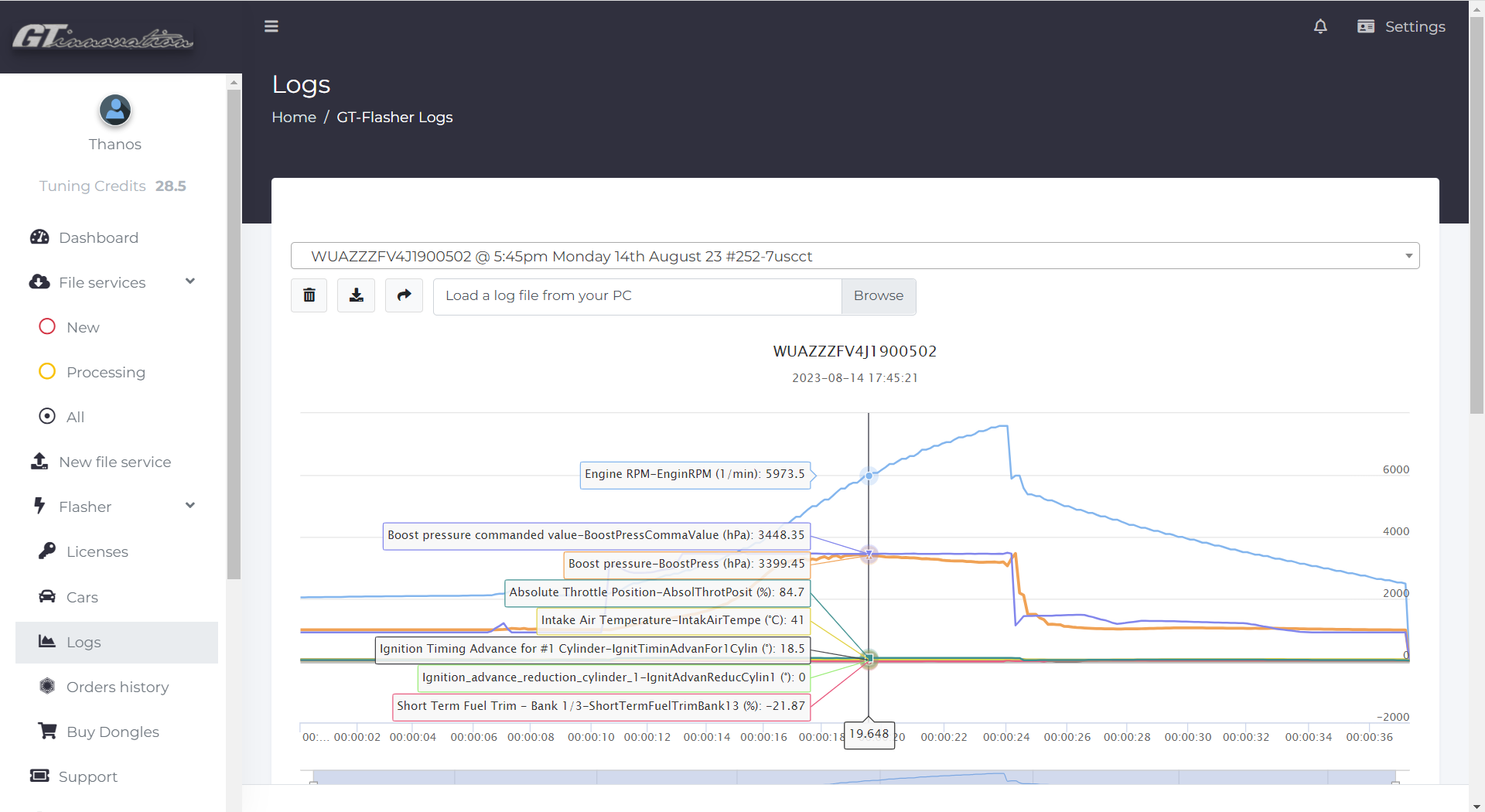
You can also upload a log file manually from the portal, but manually uploaded logs are not stored permanently — upload from the app to keep them attached to your car.
AI log analysis
Every uploaded log can be analyzed with AI, right in the log viewer. Select the part of the recording you're interested in — a single pull works best, up to 90 seconds; you can drag the range directly on the chart — choose Brief for a quick health summary or Extended for a full report, and click Analyze.
The analysis knows your car: your vehicle's exact specifications and the files you have flashed are taken into account, so the feedback is about your setup — boost, fueling, timing and temperatures explained in plain language, with anything unusual pointed out. It's a great first read of a pull before (or alongside) asking support. The report is guidance, not a replacement for proper diagnostics.
6. Support
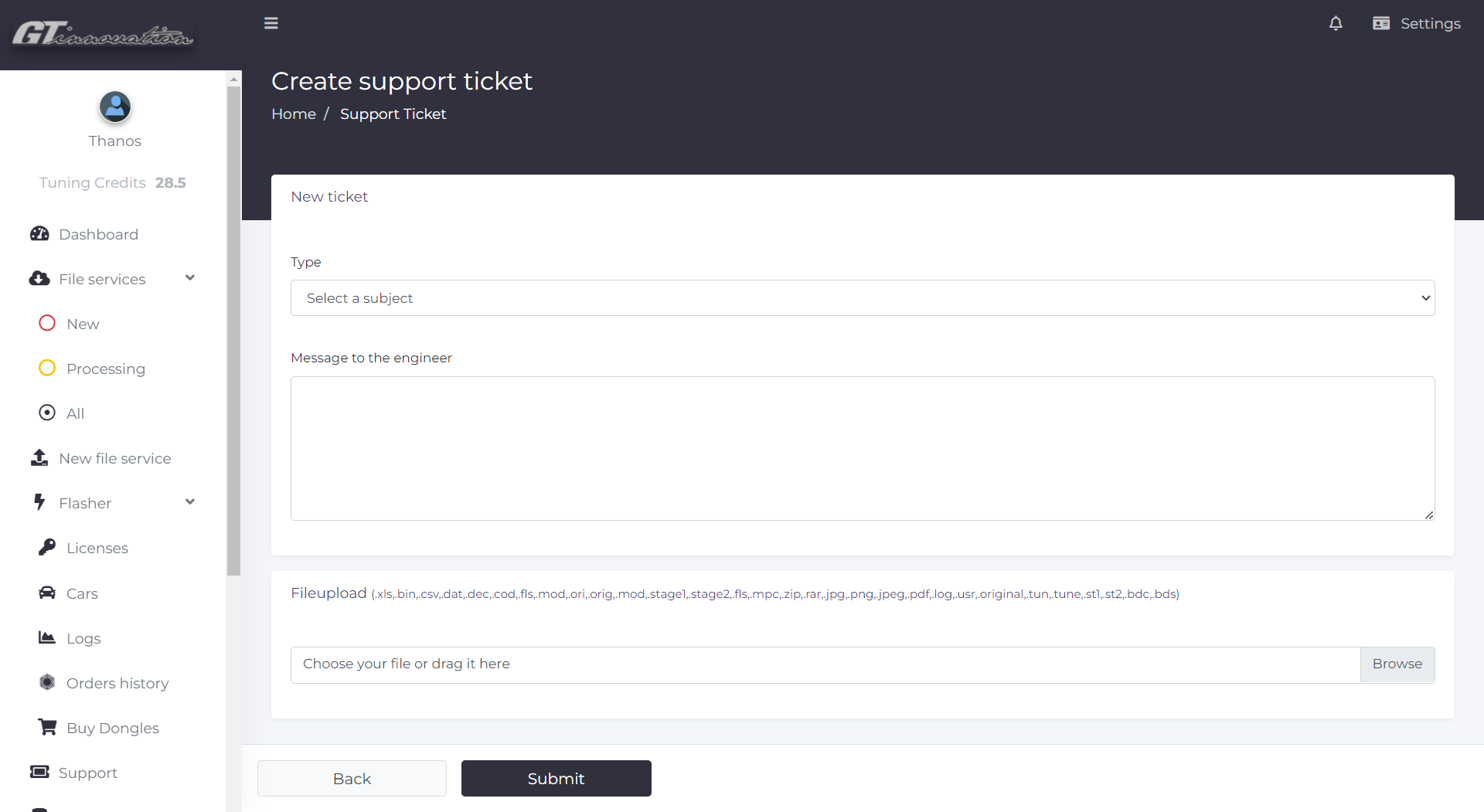
Support isn't only for problems. Missing a preset for your ECU, a vehicle you'd like supported, or a feature you wish the app had? Open a support ticket and tell us — user requests drive what gets added next.
For anything that concerns a specific car — a calibration issue, a question about a log, a request for your file — always include the VIN, so we can look at your exact setup.
Editing your details
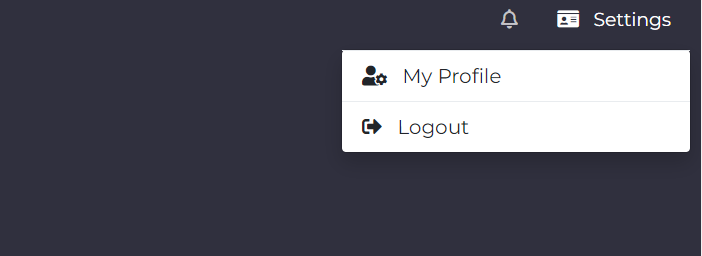
Change your account information any time from Settings (top-right of the portal).