FlexIt ethanol sensor
The GT-FLEX-IT is GT-Innovation's ethanol-content sensor. Wired into the fuel line, it measures the ethanol percentage of the fuel (E0–E100) plus the fuel temperature, and GT Flasher connects to it over Bluetooth to show those readings live, configure how it reports on the car's CAN bus, and calibrate it. You can also pull ethanol content into a logging session so it sits next to your ECU data in the same log.
The screenshots below are from the Android app. FlexIt works the same way on iPhone / iPad and Windows — the screens are identical, so follow the same steps on any app.
You don't need a car or a sign-in to use FlexIt. The sensor connects directly over Bluetooth, so you can open the FlexIt screens and read ethanol content on their own. (Pulling ethanol into ECU logging, further down, does need a connected car.)
Opening FlexIt
Open FlexIt from the FlexIt card on the app's home screen, or from the FlexIt Sensor card on the Tools screen. Either one takes you to the FlexIt Sensors screen, where the app scans for nearby sensors.
Make sure the sensor is powered on and nearby, and allow Bluetooth when the app asks — the app scans over Bluetooth Low Energy, the same as a tuning dongle. If no sensor is found, you get a shop link to shop.gt-innovation.com where you can get one.
Connecting to the sensor
When the app finds your sensor it appears as GT_FLEX_IT with its Bluetooth address. Tap Connect.
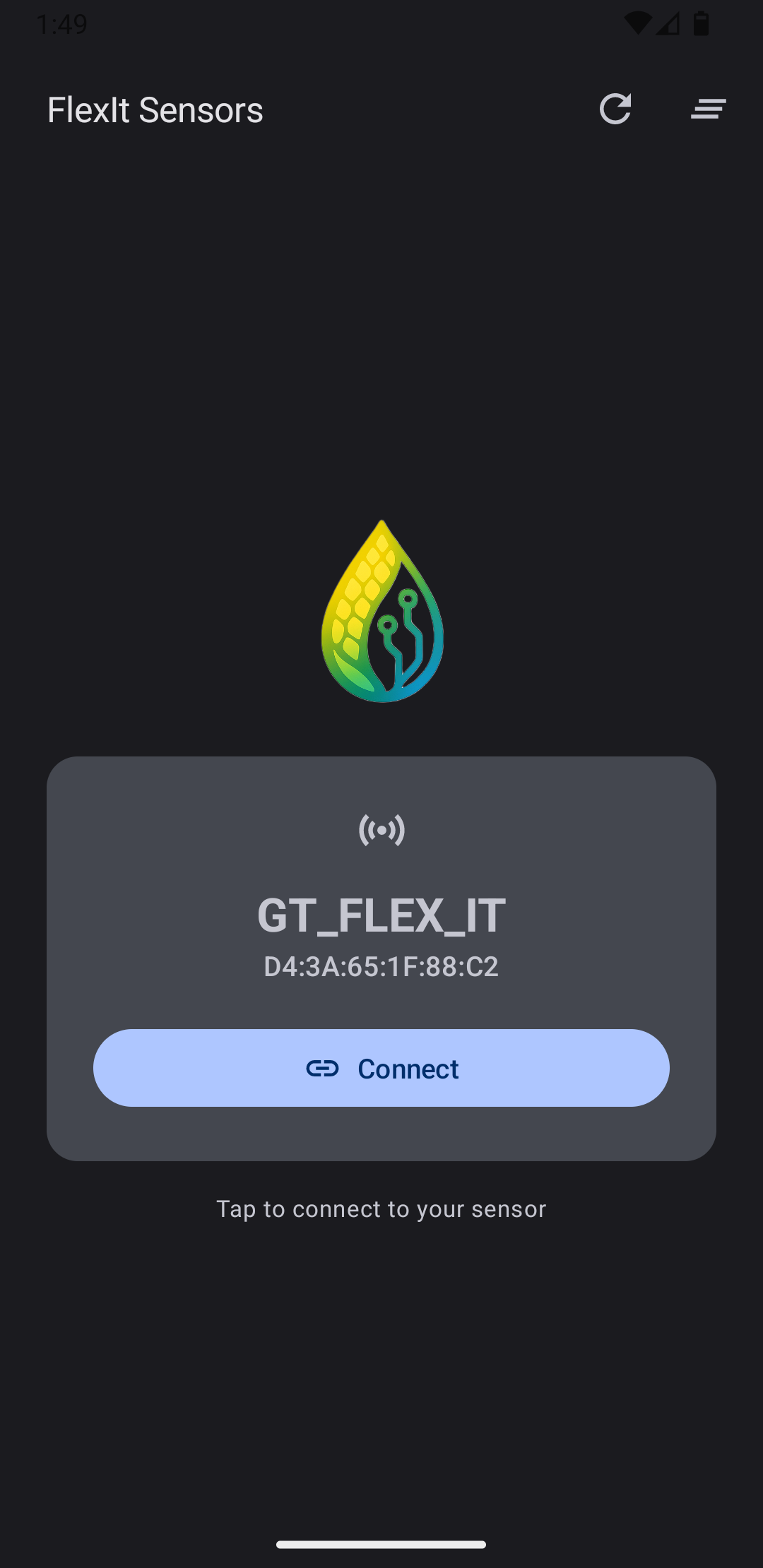
That's the whole connection — there's no pairing code. The first connection warms up and can take a few seconds; after that the app opens the live readings.
Live readings
Once connected you get the live sensor screen: a large ethanol content gauge in % E (0–100), with Fuel Temperature in °C and the sensor's supply Battery voltage in V below it. The status under the title shows Connected while the sensor is streaming.
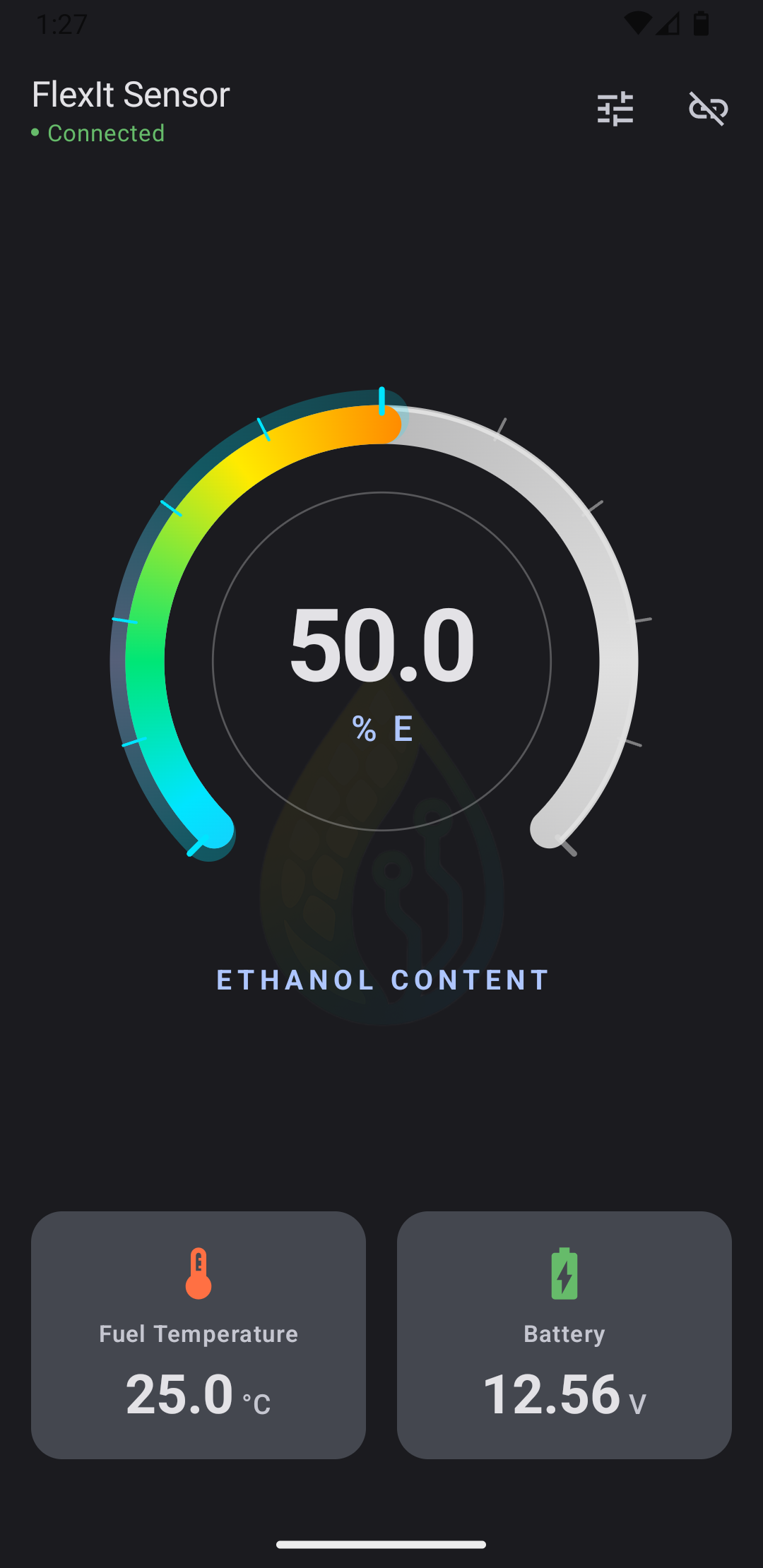
From the settings (the slider icon, top right) you can change how often the app reads the sensor — the Update Rate options are 100 ms, 250 ms, 500 ms (default) and 1 s — and open Device Configuration (below). The unlink icon disconnects the sensor.
Device configuration
Device Configuration (from the settings menu on the live screen) shows the sensor's firmware version and lets you set up how it reports on the car's CAN bus and how it's calibrated.
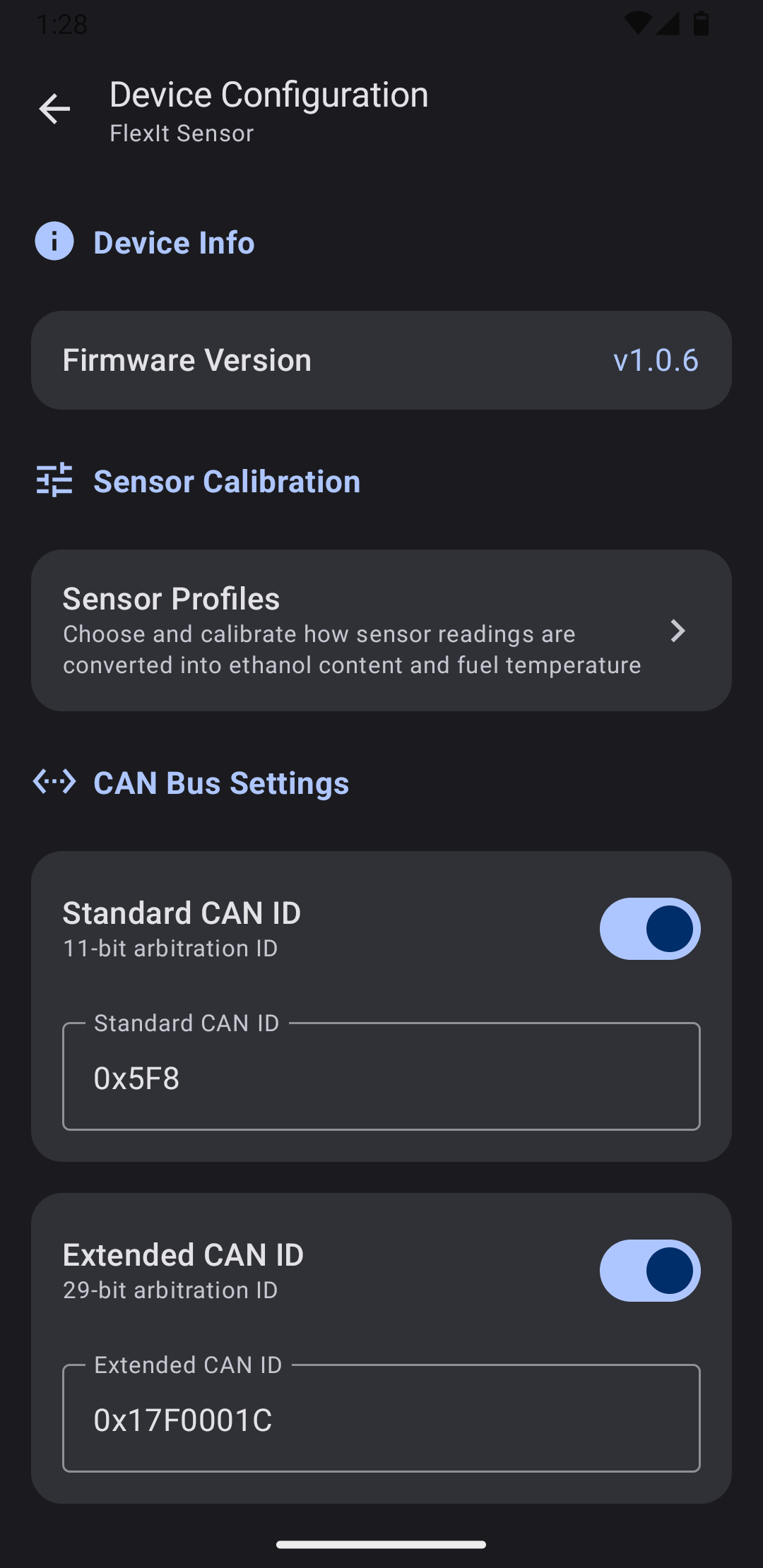
- CAN Bus Settings — the FlexIt can broadcast ethanol and fuel temperature onto a CAN bus so a standalone ECU or dash can read them. Turn on Standard CAN ID (11-bit) and/or Extended CAN ID (29-bit) and set the arbitration ID (in hex), choose the CAN Bitrate (100 / 125 / 250 / 500 / 800 / 1000 kbps) and the CAN Update Interval (how often it sends, minimum 50 ms). Set these to match whatever is reading the bus.
- Firmware Update — if a newer sensor firmware is available, an update card appears here and flashes it over Bluetooth. Keep the sensor connected and powered until it finishes.
- Factory Reset (in the Danger Zone) erases all configuration, restores defaults and reboots the sensor.
Sensor profiles & calibration
A profile decides how the sensor's raw signal is turned into an ethanol percentage and a fuel temperature. Open Sensor Profiles from the configuration screen.
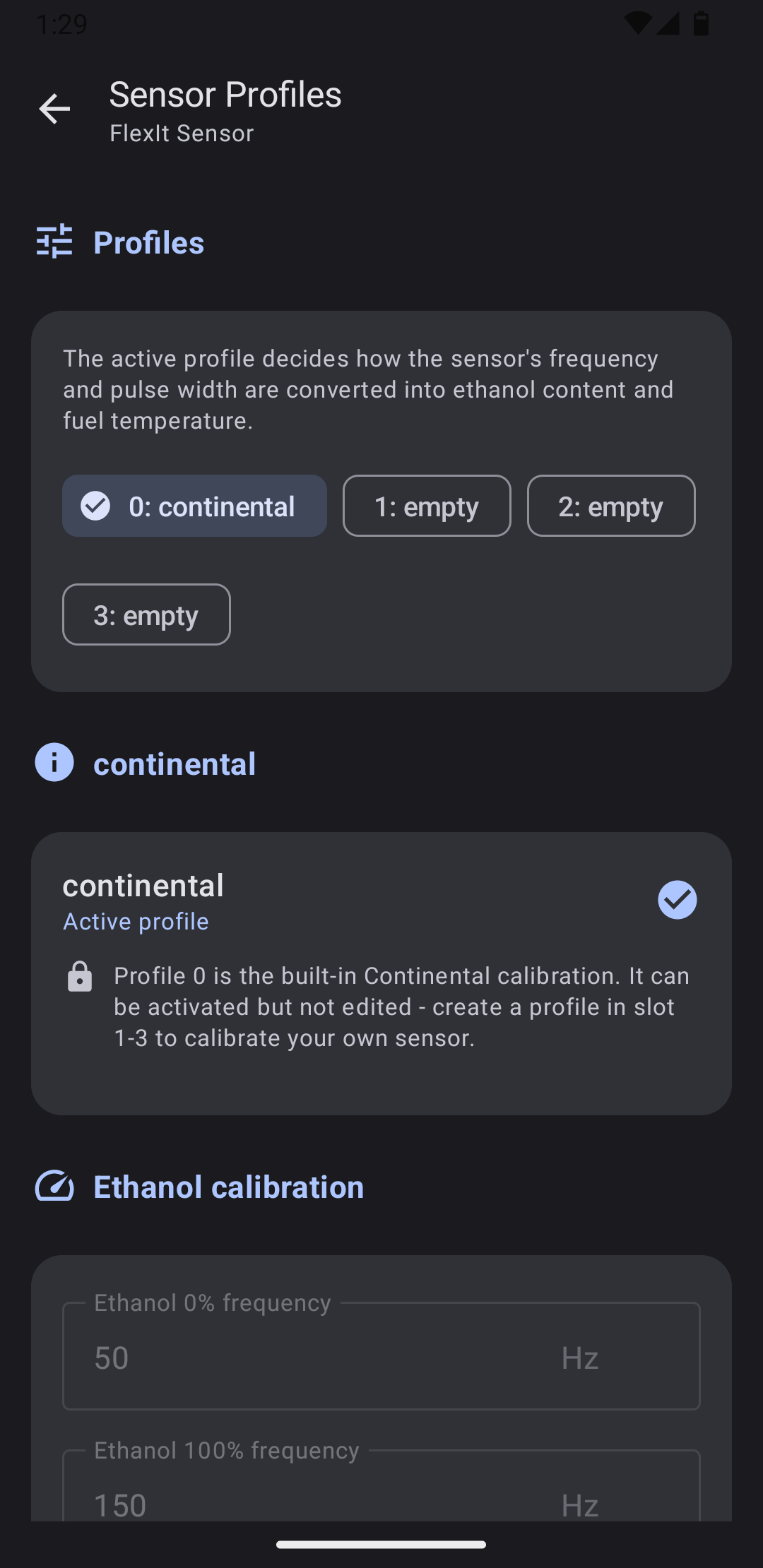
- There are four slots. Slot 0 is the built-in Continental calibration — it can be activated but not edited. It's the right choice for a standard Continental sensor element.
- To calibrate your own sensor, create a profile in slot 1–3, give it a name, and Activate it. You can Rename or Clear your own profiles at any time.
- A profile holds the ethanol calibration (the 0 % and 100 % reference frequencies, scale and offset) and the temperature calibration. You can edit these values directly, or use Calibrate ethanol / Calibrate temperature to set a point against a known reference while the sensor reads live.
Only change a calibration if you know your sensor's reference values. For a standard sensor the built-in Continental profile is correct — if your readings look off, check that first before editing anything (and contact support if you're unsure).
Logging ethanol alongside ECU data
The most useful trick: during a normal ECU logging session you can connect the FlexIt at the same time, so live ethanol content, fuel temperature and voltage are recorded next to every ECU signal in the same log — ideal for seeing how the car responds to the fuel it's actually running.
Start a logging session as usual (connect to the car and pick your presets — see the logging guide for Android, iPhone / iPad or Windows). On the logging screen a green FlexIt Sensor — Include ethanol content in logging card appears at the top. Tap Add, pick your sensor and connect.
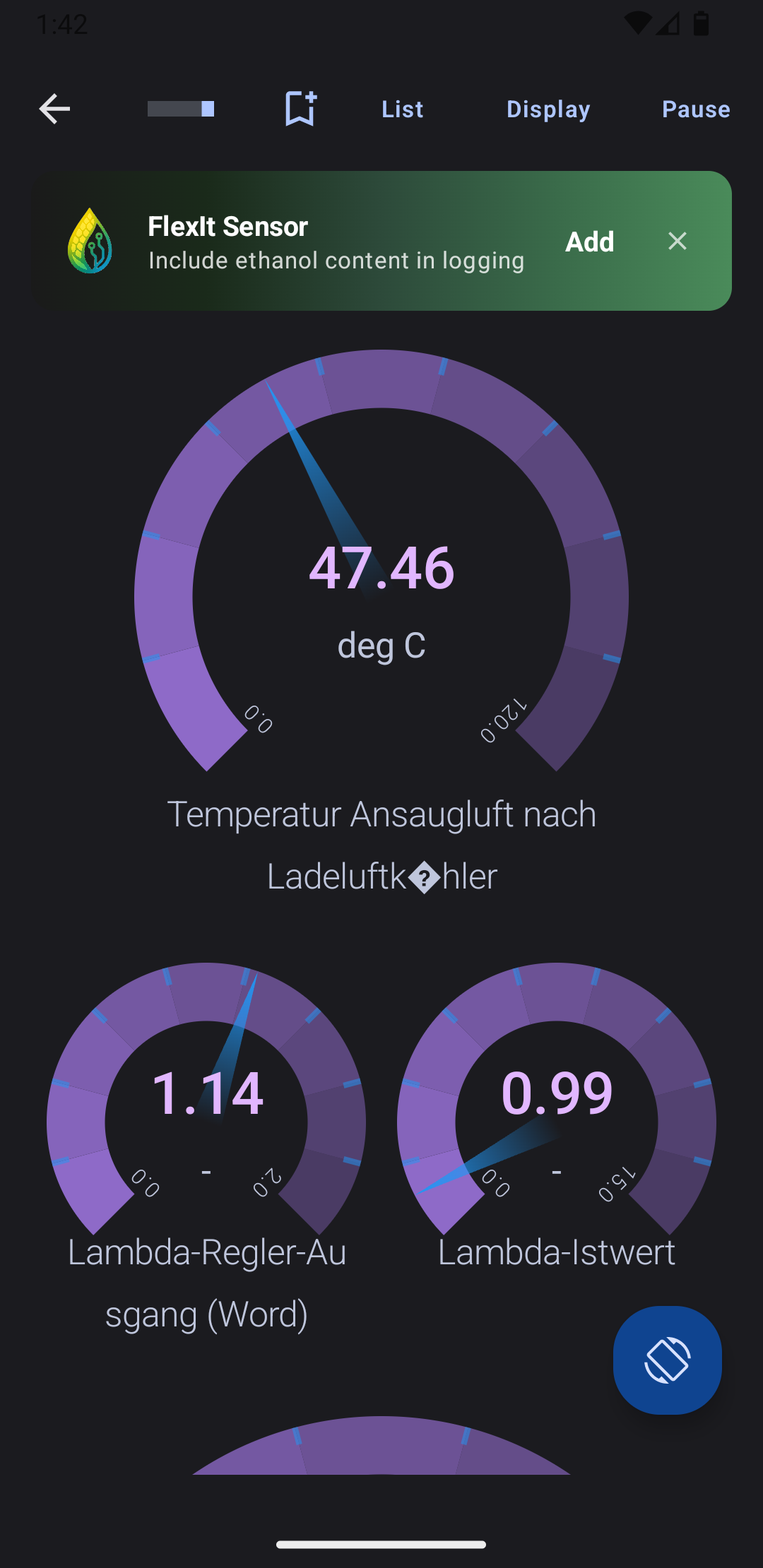
Once connected, the card shows the live ethanol reading alongside your gauges, and the values are written into the log. When you save a Display & Record session, the exported log gains Ethanol Content, Fuel Temperature and Battery Voltage columns next to the ECU channels. The FlexIt disconnects automatically when you leave the logging screen.
Tips & troubleshooting
- No sensor found — make sure it's powered and nearby, that Bluetooth is on and allowed for the app, then scan again. The first connection can take a few seconds.
- Readings look wrong — check you're on the right profile (the built-in Continental profile for a standard sensor) before changing any calibration value.
- Nothing on the CAN bus — confirm the CAN ID, bitrate and update interval match whatever device is reading the bus.
- Still stuck? Contact support — see Your account & the portal.